Install Guide
Get Compose HotSwan running in your project in just a few minutes.
Install the IDE Plugin
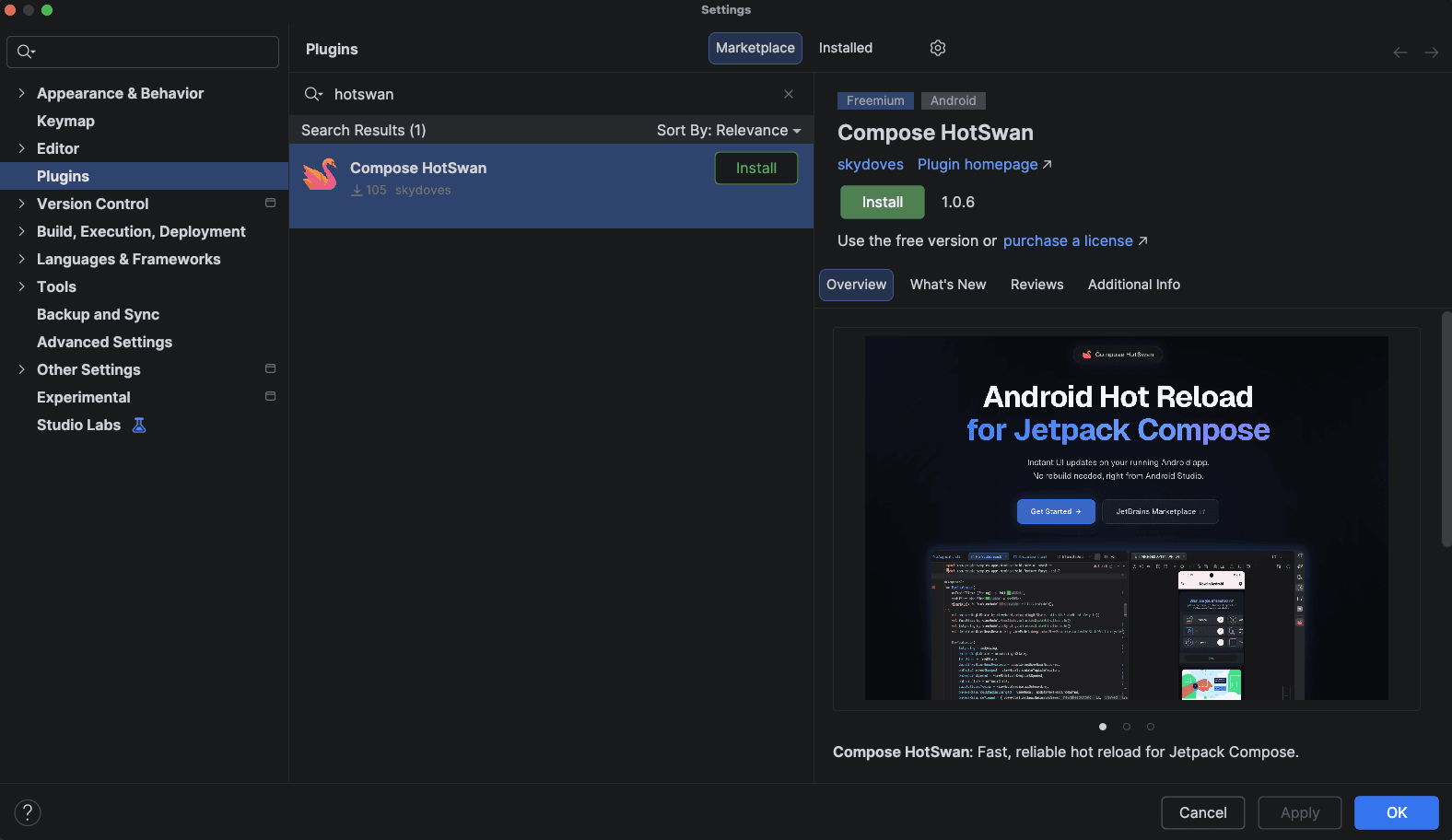
Open your JetBrains IDE (Android Studio or IntelliJ IDEA), go to Settings → Plugins → Marketplace, and search for "Compose HotSwan". Click Install and restart the IDE. You can also install it directly from the JetBrains Marketplace.
Kotlin Multiplatform?
If your project uses Kotlin Multiplatform, see the Kotlin Multiplatform guide for KMP-specific setup and module configuration.
Configure Gradle
Add the HotSwan compiler plugin to your project. Three files need to be updated:
Define the HotSwan compiler plugin in your version catalog so it can be referenced across modules.
1[plugins]
2hotswan-compiler = { id = "com.github.skydoves.compose.hotswan.compiler", version = "2.0.1" }
Register the plugin in the root build script without applying it, so submodules can apply it individually.
1alias(libs.plugins.hotswan.compiler) apply falseApply the plugin in your app module. This enables the compiler transformations and automatically adds the HotSwan runtime.
1alias(libs.plugins.hotswan.compiler)IDE and Gradle versions must match
The Gradle plugin version must match the IDE plugin version. When you update the IDE plugin, update the version in libs.versions.toml as well. The Gradle plugin automatically handles the runtime dependency and required Kotlin compiler flags.
Build and Run Your App
Build and run your app normally with the Run button. The Gradle plugin auto-configures everything needed for hot reload in debug builds — no additional setup required.
Start HotSwan
Open the HotSwan panel via View → Tool Windows → HotSwan. Select your target device and click Start. The status will change to READY.
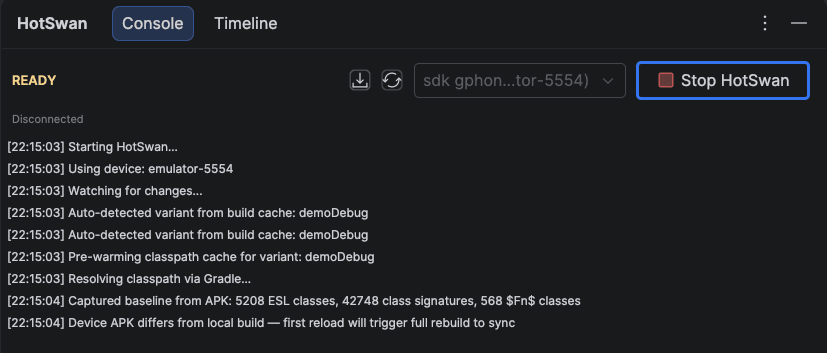
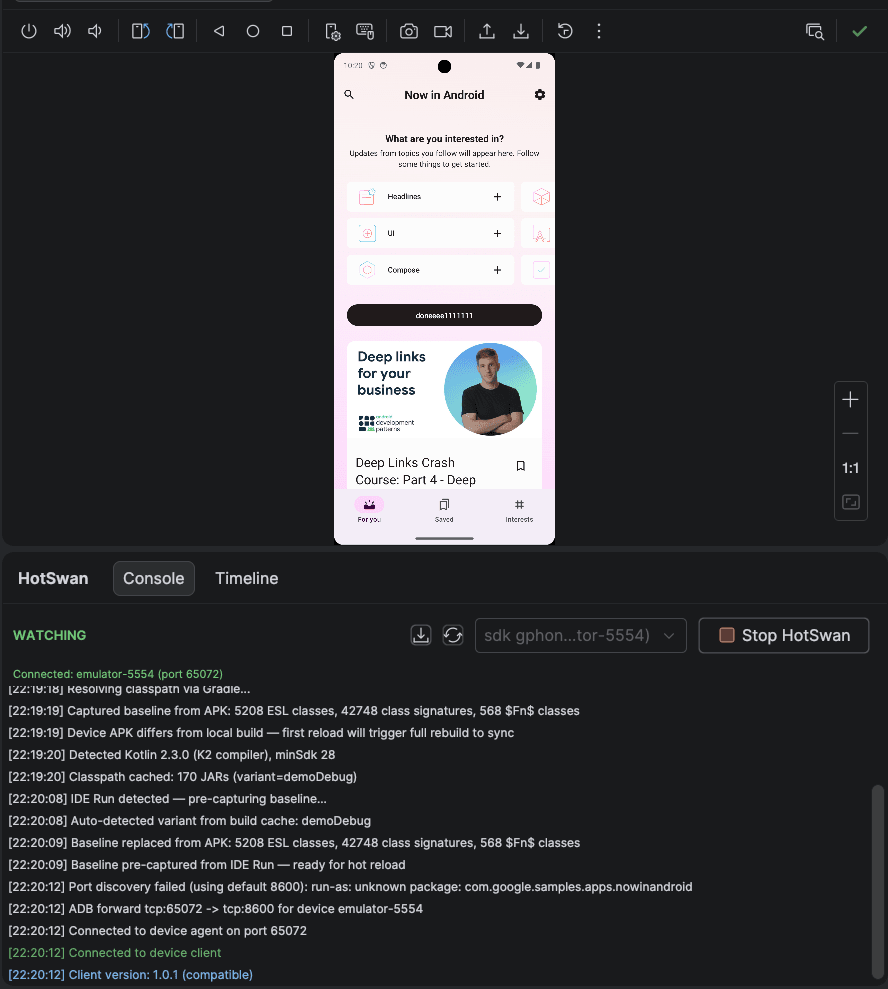
Once your app is running on the device, HotSwan connects automatically and the status changes to WATCHING.
Start Hot Reloading!
Edit any Kotlin file and save (Cmd+S / Ctrl+S). HotSwan detects the change, compiles only the modified code, and applies the update to your running app. Your UI updates instantly without losing any state.
Not just composables. You can also modify ViewModel methods, utility functions, resource values, and more. See the full list of supported changes.
Troubleshooting
Having issues? Check these common solutions.
Module Not Found
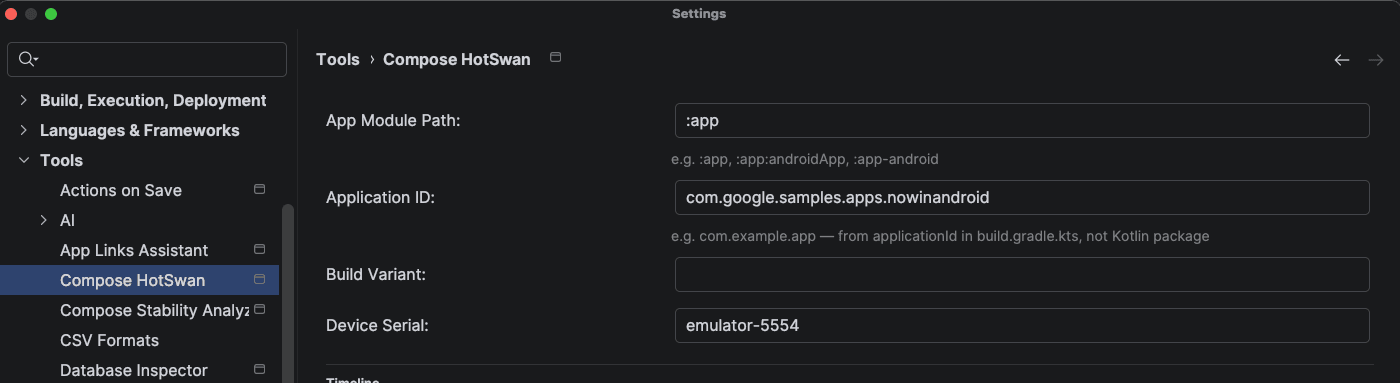
HotSwan could not find the Gradle module you specified. Go to Settings → Tools → Compose HotSwan and set the correct module path. For standard projects, the default :app works. For Kotlin Multiplatform projects, use the full path like :app:androidApp.
App Launch Failed
The package name configured in HotSwan does not match your app's actual applicationId. Open Settings → Tools → Compose HotSwan and verify the App Package Name matches the applicationId in your module's build.gradle.kts.
Tool Window Not Visible
Go to View → Tool Windows → HotSwan. If it's not listed, check that the plugin is installed and enabled in Settings → Plugins.

Version Mismatch
The IDE plugin and Gradle plugin versions must match. Check your IDE plugin version in Settings → Plugins and ensure the same version is set in your libs.versions.toml.
Crash After Reload
Structural edits, including adding a function or changing a data class, apply in place in 2.0, so a crash is not the expected outcome for one. The change that does need a restart is altering a class's supertype or the interfaces it implements, and HotSwan detects that while building and relaunches the app for you. If a crash persists, run your app again with the Run button to get back to a known good state.
Frequently Asked Questions
How long does it take to install Compose HotSwan?
Under 2 minutes. Install the IDE plugin from JetBrains Marketplace, add one line to your Gradle config, and you're ready to hot reload.
Does HotSwan work with Android Studio and IntelliJ IDEA?
Yes. HotSwan supports Android Studio Meerkat (2024.3) and later, as well as IntelliJ IDEA 2024.3 and later.
Is there a free trial?
Yes. Every new user gets a 14-day free trial with full access to all features. No credit card required.
Does HotSwan work with Kotlin Multiplatform?
Yes. Apply the HotSwan Gradle plugin to the module that owns the app: your Android application module, or the module declaring binaries.framework for iOS. One save then reloads Android, Compose Desktop and any booted iOS simulator. See the Kotlin Multiplatform guide for details.