Compose HotSwan Blog
Tuning Compose Themes Live: A Visual Feedback Loop for UI Design

May 7, 2026 · 10 min read
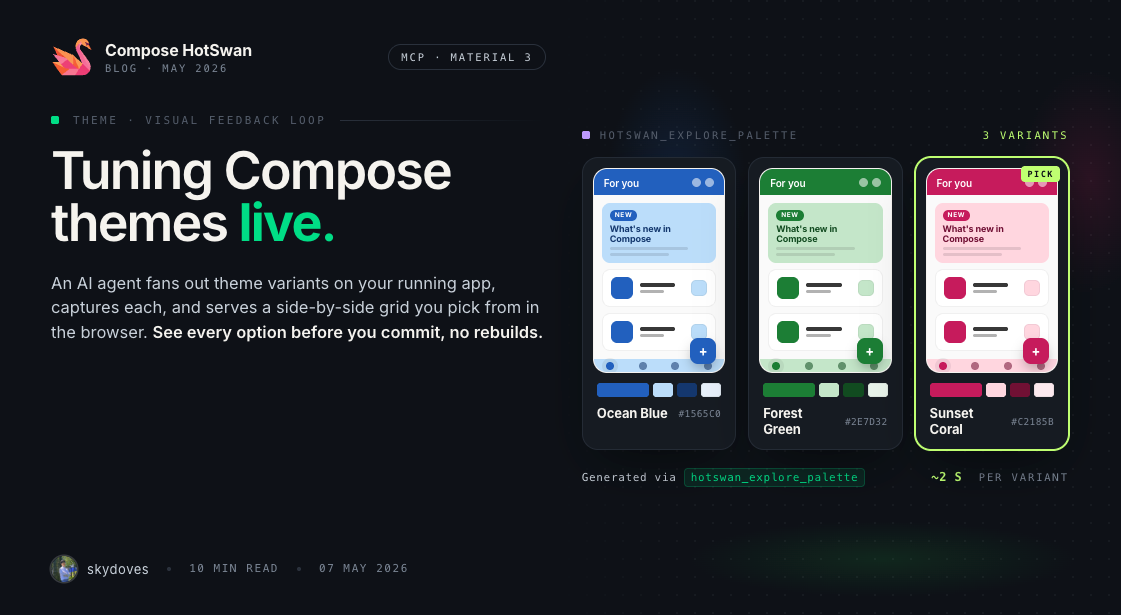
Picking a palette is a visual decision trapped behind a build
The day you commit to a brand color in a Compose app is the day you discover that the rebuild loop is sized wrong for visual decisions. You change primary from one purple to another, wait thirty seconds for Gradle, navigate back to the screen, decide it looks slightly off, tweak it again. Five iterations in, you have spent more time watching a progress bar than looking at the palette.
The deeper problem is that UI style is a visual judgment, and visual judgments need a tight loop between change and result. A theme is a coordinated look, primary, container, secondary, tertiary, and surface working together, not a single color. What you actually need to compare is two complete looks side by side, on a running screen, with the same content. The wrong comparison is what most of us actually do: rebuild, blink, remember, rebuild, blink, remember.
The loop that fixes this has three beats. An AI agent fans out style variants for you. Compose hot reload renders each one live on the device you are already looking at. You do the part nobody else can, which is looking at the running screens and saying “that one”. Each beat needs the other two. Without an agent you generate variants by hand. Without hot reload every variant is a rebuild. Without you in the seat, you ship whatever a model picked.
HotSwan Palette is the tool that wires those three beats together. An AI agent in your editor calls one MCP tool, the plugin renders several theme variants live on your running app through Compose hot reload, captures a screenshot of each, and opens a side by side grid in your browser. The variants stay in scope for as long as the page is open. You watch them, you click the one your eye lands on. The plugin rewrites your Theme.kt literals atomically through the IDE Document API. You move on.
In this article you will see the full loop in motion using Now in Android, Google's Compose sample app, as the test bed.
One MCP call, several variants, live on your device
The auto mode tool is hotswan_explore_palette. You ask your AI agent something like "explore theme variants for this screen", and it invokes the tool with a small JSON payload:
{
  "axes": ["color"],
  "variantCount": 3
}
The plugin then runs the loop on your machine: find the theme file, generate N variants from a seed hue, and for each one apply it on the device, screenshot, restore baseline. When the loop finishes, a side-by-side grid opens in your browser and the agent hands you the URL.
Roughly two seconds per variant on a Pixel-class emulator. Three live renders, one browser tab, no Gradle.
Worked example: the Now in Android For You screen
Now in Android ships with a deliberate Compose theme. The light scheme lives in core/designsystem/.../Theme.kt and reads as a standard scheme declaration:
@VisibleForTesting
val LightDefaultColorScheme = lightColorScheme(
    primary = Purple40,
    onPrimary = Color.White,
    primaryContainer = Purple90,
    onPrimaryContainer = Purple10,
    secondary = Orange40,
    onSecondary = Color.White,
    secondaryContainer = Orange90,
    onSecondaryContainer = Orange10,
    tertiary = Blue40,
    onTertiary = Color.White,
    tertiaryContainer = Blue90,
    onTertiaryContainer = Blue10,
    // ... background, surface, outline ...
)
The named arguments resolve to Color(0xRRGGBB) literals over in Color.kt:
internal val Blue40 = Color(0xFF006780)
internal val Blue80 = Color(0xFF5DD5FC)
internal val Blue90 = Color(0xFFB8EAFF)
internal val Orange40 = Color(0xFFA23F16)
internal val Orange80 = Color(0xFFFFB59B)
internal val Orange90 = Color(0xFFFFDBCF)
internal val Purple10 = Color(0xFF36003C)
internal val Purple20 = Color(0xFF560A5D)
internal val Purple30 = Color(0xFF702776)
internal val Purple40 = Color(0xFF8B418F)
internal val Purple80 = Color(0xFFFFA9FE)
internal val Purple90 = Color(0xFFFFD6FA)
// ... gray, red, green, teal ranges ...
That structure is exactly what HotSwan Palette's theme detector is built for: named arguments at the scheme call site, top level val tokens with Color(0x...) bodies. The auto detector finds it without any annotation or config from you.
To kick off the loop, run NIA on an emulator and navigate to ForYouScreen on the device. Then in your AI editor of choice (Claude Code, Cursor, Codex, whatever your team uses) you type a plain language prompt:
hotswan_explore_palette to fan out three color variants for the For You screen.”The agent translates that into the hotswan_explore_palette call you saw above and the plugin starts the loop on your machine: detect the theme file, generate three palettes, apply each one live, screenshot, restore, repeat. A few seconds later, a comparison grid is waiting in your browser:
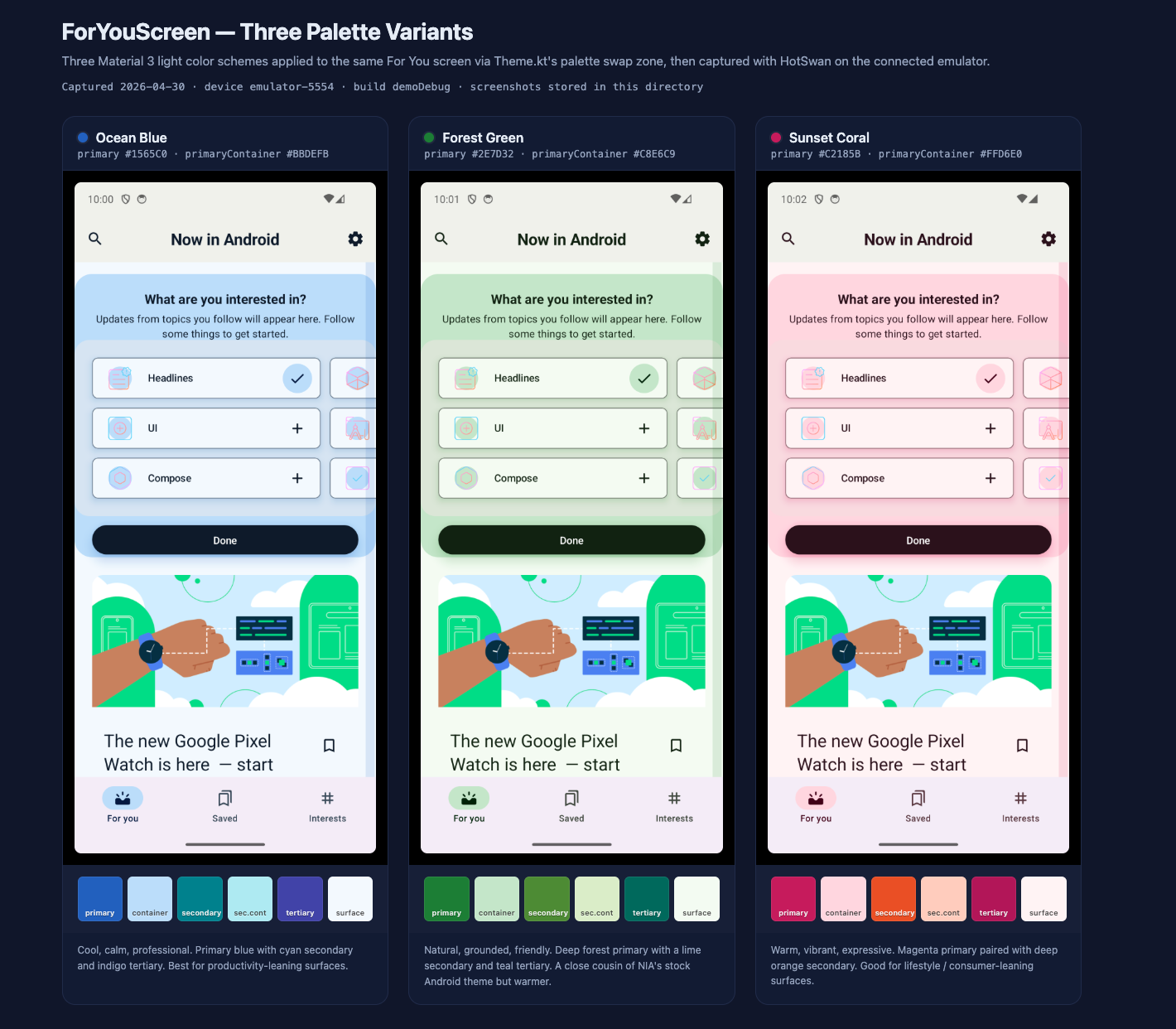
Three concrete themes against the exact same screen and the exact same content. The interest cards, the watch image, the bottom nav: identical fixtures, only the style varies. This is what visual judgment actually needs: same content, same layout, different look, all live.
- Ocean Blue
primary #1565C0,primaryContainer #BBDEFB. Cool, calm, professional. Cyan secondary, indigo tertiary. Reads as productivity surface. - Forest Green
primary #2E7D32,primaryContainer #C8E6C9. Natural, grounded. Lime secondary, teal tertiary. A close cousin of NIA's stock Android theme but warmer. - Sunset Coral
primary #C2185B,primaryContainer #FFD6E0. Warm, vibrant, expressive. Magenta with deep orange secondary. Reads as lifestyle surface.
The grid is your decision surface. A few interactions worth knowing before you commit:
- Click a card and the device live-applies that variant. You can sit at the emulator, scroll the For You feed, open a card detail, feel each option on the running app instead of squinting at the screenshot. The variant stays applied until you click another card or close the page.
- Read the swatch row under each thumbnail. Six chips for primary, container, secondary, sec.cont, tertiary, surface. That row is how you spot the variants where the secondary clashes with the primary, or where the surface goes too warm. The primary color alone never tells you that.
- Click the “Pick” button on the card you want to keep. That commits the choice. Closing the tab without picking is a no op: the plugin has already restored baseline before serving the grid, and the source on disk is untouched.
Say the eye lands on Ocean Blue. You click Pick on the Ocean Blue card. The plugin atomically rewrites the Color(0x...) literals in Color.kt through the IDE Document API. The change shows up in your editor as a normal file edit, fully undoable from the IDE history. For NIA the diff is six lines:
internal val Purple40 = Color(0xFF8B418F)
internal val Purple90 = Color(0xFFFFD6FA)
internal val Orange40 = Color(0xFFA23F16)
internal val Orange90 = Color(0xFFFFDBCF)
internal val Blue40 = Color(0xFF006780)
internal val Blue90 = Color(0xFFB8EAFF)internal val Purple40 = Color(0xFF1565C0)
internal val Purple90 = Color(0xFFBBDEFB)
internal val Orange40 = Color(0xFF00838F)
internal val Orange90 = Color(0xFFB2EBF2)
internal val Blue40 = Color(0xFF283593)
internal val Blue90 = Color(0xFFC5CAE9)Once the diff lands, the loop continues in your editor. You can keep talking to the agent in plain language and most follow-ups land back on the running app within seconds:
The agent re-runs hotswan_explore_palette with a darker seed hue derived from the variant you just picked. New grid, three new variants, same screen, same content, same flow.
Two ways out, both fast. The agent calls hotswan_revert_change to restore the prior committed state via the decision history HotSwan tracked when you clicked Pick. Or you just press Cmd+Z in the IDE on Color.kt because the rewrite was a normal Document edit. Either way the device picks up the revert through hot reload without a rebuild.
A targeted tweak. The agent edits the single literal in Color.kt, the file watcher fires, the running app updates in well under a second. No grid this time, just a one-shot refinement. This is where Palette stops being a generator and starts being a conversation: variants for breadth, literal edits for depth, both routed through the same hot-reload pipeline. After this short back-and-forth with the agent, the For You screen on the device settles into the final theme:
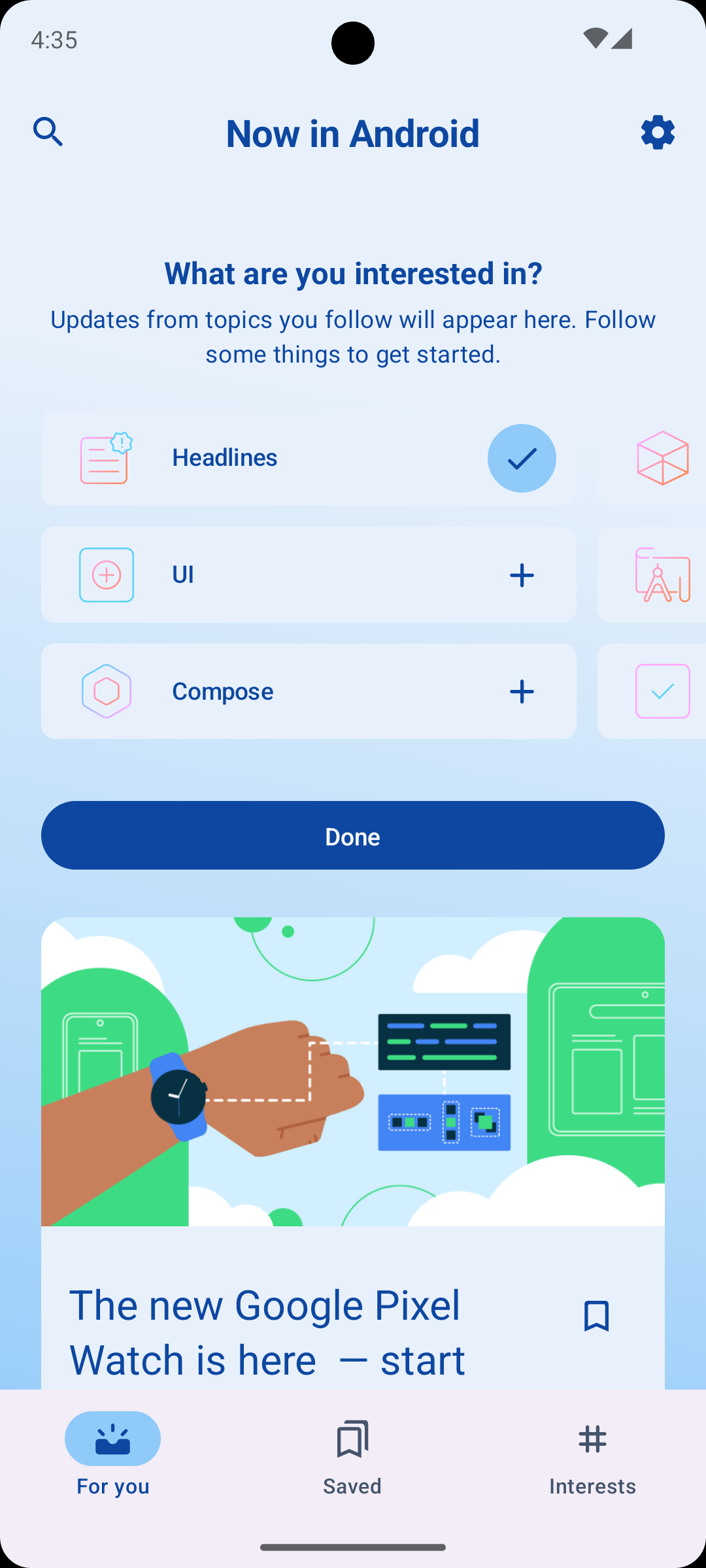
The primary lands at #1976D2 exactly where you asked, the Done button and the headlines check pick it up automatically, the surfaces deepened a step from the original Ocean Blue, the accent illustration is now reading cool. Three short messages to the agent, one running emulator, no rebuilds along the way.
One small note about token names. After the swap, NIA still has identifiers like Purple40 and Orange40 even though they now hold blue and cyan. That is intentional. Palette mode treats the token names as positions in the color scheme, not as semantic facts about hue. NIA happens to call its primary token Purple40 because the sample shipped with purple. Once the visual decision is settled, you can ask the agent to rename tokens to match the new hue in a follow up commit. The point of the iteration loop is to nail the look first, then handle housekeeping.
Why this is fast and safe: literal patching is the right primitive
Theme exploration would be a non starter if every variant cost a full hot reload. The reason it works is that Color(0xRRGGBB) is a primitive literal, and HotSwan has a dedicated path for primitive literals.
A literal patch swaps a value in the running app without going through a build. The agent applies a new color, Compose picks it up on the next composition, the screen redraws. The round trip is fast enough that you stop thinking of variants as separate iterations and start thinking of them as a single browsing session.
Literal patching is also the quietest path through the HotSwan pipeline. The worst case for any single variant is a color that looks weird, and the user clicks the next thumbnail. There is no broken build to recover from, no state to rebuild, no place to navigate back to. Compare to general purpose code generation tools where a meaningful fraction of edits land you in some recovery flow.
That tight failure model is why Palette can promise something general purpose AI dev tooling cannot: every variant the agent shows you is a variant that already runs. The grid is not a preview render. It is a screenshot of your actual app.
If you want the deeper view of how literal patching is wired, see the Literal Patching documentation.
When the auto detector cannot find your theme file
Not every project hands the auto detector a clean target. KMP shared theme libraries hide the scheme behind a custom data class. Older modules drive theming through colorResource(R.color.X) in XML. Custom design systems wrap MaterialTheme in a project specific composable. For all of those, hotswan_explore_palette returns a "No Material 3 theme file detected" error.
The fallback is a second tool, hotswan_show_palette_grid. The agent runs the iteration loop itself: edit specific literals in the file using its own edit tool, call hotswan_reload, wait one or two seconds, call hotswan_take_screenshot, revert, repeat. Then it hands a list of variants to the same grid renderer:
{
  "variants": [
    {
      "name": "Ocean Blue",
      "description": "Cool, calm, professional",
      "screenshotPath": "/path/to/ocean-blue.png",
      "swatches": ["#1565C0", "#BBDEFB", "#283593", "#C5CAE9"],
      "edits": [
        {
          "file": "/path/to/Color.kt",
          "find": "val Purple40 = Color(0xFF8B418F)",
          "replace": "val Purple40 = Color(0xFF1565C0)"
        }
      ]
    },
    // ... Forest Green, Sunset Coral
  ]
}
The web grid renders identically to auto mode. When the user clicks a card, the plugin re-applies that variant's edits array through the IDE Document API, the file watcher fires, and the literal patch fast path drives the device. Same UX, same sub second click to render, regardless of how the variants were produced.
UI style decisions belong in front of your eyes, not behind a build
Picking a UI theme is one of those design decisions that a side by side grid can settle in a minute and a build loop can drag out for an afternoon. HotSwan Palette is a small, opinionated tool that closes the loop in three beats: an AI agent fans out variants, Compose hot reload renders each one live on your running app, and you look at the result and pick. One MCP call. Real device. Real screen. Real decision.
Now in Android happened to be the example here because its theme follows a clean, standard structure, but the same workflow works on any Compose project with named color tokens at the top of a theme file. If yours does not match that shape, the manual fallback covers the same ground with a couple of extra agent steps and lands in the same comparison grid.
The point is not the palette. The point is that style decisions are visual decisions, and visual decisions get better when the loop between change and render is short enough to live inside your eyeline. AI agents are good at generating coordinated options. Compose hot reload is good at making each option visible immediately. You are good at looking and choosing. Wire those three together and a category of UI work that used to take an afternoon collapses into a few seconds of looking.
If you want to try this on your own app, install Compose HotSwan, wire up the MCP server, and ask your agent to explore a theme. The next style decision you ship can be one you actually looked at, instead of one you imagined between rebuilds.
As always, happy coding!
— Jaewoong (skydoves)
Recommended Reading
Compose HotSwan 2.0.0: The Future of Hot Reload on Android, iOS, and Desktop
10 min read
Desktop Hot Reload for Compose Multiplatform: One Save Updates Your Android Device and Desktop Window Together
9 min read
Compose HotSwan v2 Beta: Hot Reload for Structural Changes, Whole Screens, and Live AI Edits
10 min read