Documentation
MCP Server
The HotSwan MCP Server connects any AI assistant to your running app on Android, the iOS simulator or Compose Desktop through the Model Context Protocol. All your AI tools can edit Compose code, trigger hot reloads, capture device screenshots, and explore design variants, all driven by natural language.
Overview
Instead of passively watching AI generated file changes, the MCP Server gives AI assistants direct control over the hot reload pipeline. The AI can trigger reloads on demand, capture screenshots to see the result, compare multiple variants, and make decisions about which design works best.
This transforms AI assisted development from a one way “edit and hope” workflow into a closed feedback loop: the AI sees exactly what its changes look like on a real device and can iterate autonomously.
How It Works
The MCP Server runs as an embedded HTTP bridge inside the IntelliJ plugin. When an AI tool calls an MCP tool, the request flows through three stages:
AI Edits Code
The AI assistant reads and modifies Kotlin/Compose files using its built in file editing tools.
Hot Reload Applies
HotSwan compiles the changed code and swaps it into your running app in memory. No restart needed.
AI Sees the Result
Screenshots are captured and stored as snapshots. The AI and you can review, compare, and iterate.
Setup
Copy the MCP configuration from IntelliJ, then add it to your AI tool.
1. Copy the config
Navigate to Settings → Tools → Compose HotSwan and click Copy MCP Config to Clipboard.
2. Add to your AI tool
Select your tool below for the config path and setup command. Replace placeholder paths with your actual plugin installation and project directories.
Available Tools
The MCP Server exposes 33 tools. Each row states the platforms it actually serves — several are Android-only today, and the page says so rather than implying parity.
CoreHot Reload Controls
hotswan_get_statusGet current state: emulator, app, watcher, snapshot capturing, device connection.
hotswan_startStart file watching and enable hot reload.
hotswan_reload(filePaths: string[])Trigger hot reload for specified file paths. Edit files first, then call this.
hotswan_revert_change(filePaths: string[])Revert files to git HEAD and trigger hot reload.
hotswan_build_and_installFull Gradle build, APK install, and auto start watcher.
SnapshotScreenshot Capture
hotswan_take_screenshotCapture a device screenshot and save it as a snapshot in the IDE.
hotswan_start_snapshotStart snapshot capturing mode.
hotswan_stop_snapshotStop snapshot capturing mode.
PaletteDesign Variant Iteration
hotswan_explore_palette(axes: string[], variantCount?: int, scopeFile?: string, scopeFunction?: string)Auto mode for standard Material 3 themes. Plugin generates 5 curated color variants, applies each via the literal-patching path, captures a screenshot per variant, and returns a browser comparison grid.
hotswan_show_palette_grid(variants: { name, description, screenshotPath, swatches?, edits[] }[])Manual mode. The agent owns the iteration loop (edit → reload → screenshot → revert) and then calls this tool to display N variants in a click-to-apply browser grid. Use when the project doesn't fit the auto-detection pattern (custom theme data class, KMP shared theme, XML colors).
hotswan_apply_palette_variant(variantId: string, reason?: string)Permanently rewrite source literals to match a variant chosen via hotswan_explore_palette. Records the choice in decision history.
hotswan_palette_statusGet the current Palette session state: axes already explored, current shortlist, whether the comparison grid is open, last applied variant.
DecisionVariant Selection
hotswan_select_variant(snapshotId: int, reason: string)Select a UI variant by snapshot ID. Rejected variants are cleaned up.
hotswan_get_decision_historyReview the full decision chain: selected, rejected, and reasons.
hotswan_clear_decisionsClear decision history when starting a new exploration.
DebugDiagnostics
hotswan_get_logs(count?: int)HotSwan's own IDE-side log ring buffer — compilation, reload and device-command lines. This is not logcat: it does not contain your app's stdout or its stack traces. For those, call hotswan_get_device_logs.
hotswan_get_device_logs(target?: string, count?: int, filter?: string)THE DEVICE'S OWN LOG, which hotswan_get_logs has never carried — this is where a stack trace lives. One entry per leg, each naming the exact command it ran and how the read was scoped, lines oldest first. Android reads adb logcat narrowed to the app's pid, and when the process is gone (exactly the case after a crash) it widens to a device-wide read and says so rather than refusing. The iOS simulator reads simctl over a time window, so count does not bound it. Compose Desktop is refused by name: HotSwan does not launch your desktop app, so it has no handle on its output. A leg reporting zero lines means the read succeeded and nothing matched, which is not evidence the app is healthy.
hotswan_list_devicesAndroid devices, emulators and booted iOS simulators. The Desktop target is not listed — select it by the literal serial 'desktop'.
hotswan_select_devices(serials: string[])Select which devices to broadcast hot reload to simultaneously.
hotswan_get_connected_devicesThe devices HotSwan would target right now: attached Android devices and booted simulators, crossed with your selection. It reports reachability, not that your app is running — use hotswan_get_reload_health for that.
hotswan_get_reload_healthWhether the last reload degraded silently — Compose caught a recompose exception and left a subtree stale without crashing. Android, Desktop and iOS.
hotswan_get_dispatch_statsLive interpreter telemetry: total dispatches, tracked classes, current rate, and the hottest-dispatching classes. Android, Desktop and iOS.
hotswan_get_hierarchyThe running composition's slot table: every group with its key, name, source location and size. Android only — Desktop answers an empty tree rather than refusing, so treat 0 groups there as 'not available', not as 'no composition'.
VerifyDid the edit actually reach the screen?
The reason an agent can trust a hot reload rather than assume it.hotswan_reload returns a snapshotId for the before/after pair it captured, plus an evidence object carrying the device's own answer: whether the settle it reports belongs to this reload, whether the recomposer went idle or merely ran out of time, and how many patched values a running composable actually read. Facts it could not establish are reported as unknown — never as false.
hotswan_screen_delta(snapshotId: int)Pixel delta between the before and after screenshots of one reload, so you can prove your edit changed the screen — and by how much. Pass the snapshotId returned by hotswan_reload. The reply names which settle signal the after-shot was anchored to, so you can tell a meaningful 'nothing changed' from a screenshot taken too early.
hotswan_list_snapshotsEvery snapshot the plugin has recorded, split into the ids hotswan_screen_delta will accept and the ids it will refuse, each with the reason. It is the only way to reach a delta for any reload other than the one you just ran, and it names the anchor that timed each after-image, which is what decides whether a 'nothing changed' verdict means anything. A before-image is captured over adb only, so a Desktop-only or iOS-simulator session has no diffable snapshot.
DriveInteracting with the running app
Android only today. Desktop and the iOS simulator refuse these by name rather than returning an empty result. Node ids come from hotswan_get_semantic_tree; HotSwan re-resolves the node's current bounds at the moment of the action, so an id stays usable after a reload moves things around.
hotswan_get_semantic_treeThe Compose semantics tree of the running app: every on-screen element with a stable nodeId, its text / contentDescription / testTag / role, and screen-pixel bounds.
hotswan_click(nodeId: int)Tap a node. Prefers the in-app OnClick semantics action; falls back to a coordinate tap on the node's current bounds.
hotswan_long_click(nodeId: int)Long-press a node, by semantics action or coordinate fallback.
hotswan_type_text(text: string, nodeId?: int)Type into a text field. With a nodeId the text lands through the in-app SetText action — exact, arbitrary text; without one it falls back to key injection.
hotswan_scroll(nodeId: int, direction: string)Scroll a container by semantics action, or by swipe as a fallback.
hotswan_scroll_to_index(nodeId: int, index: int)Scroll a lazy list to a specific index. Semantics action only — there is no swipe fallback, so it refuses when the container does not expose one.
PreviewRunning @Preview composables
hotswan_run_preview(composable: string)Run one @Preview composable in isolation on the device, in a dedicated Activity with full app context — DI, network, database. Android only, and it targets the first attached device rather than your device selection.
hotswan_capture_previewsFind every @Preview in the project, run each on the device and capture a screenshot — a component catalogue, or a visual regression baseline. Serial, roughly two seconds per preview.
HotSwan Palette
Palette turns visual design iteration on color, spacing, corner radius, typography, and density into a side-by-side pick. The AI generates N variants of whatever screen you currently have on the device, every variant lands in well under a second through HotSwan's literal patching path without rebuilding the app, and the variant you choose is written back to source as the new canonical value.
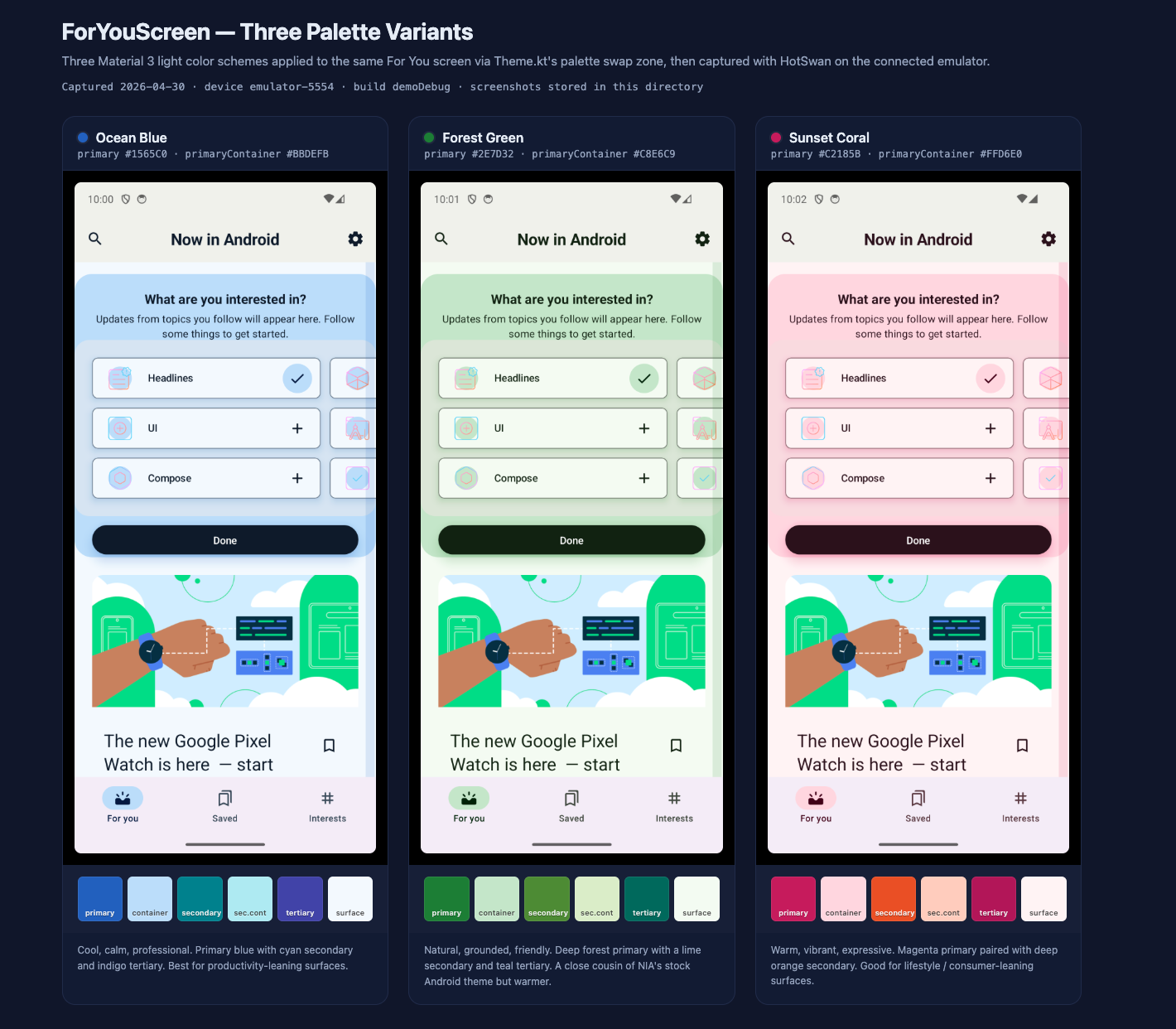
The hard guarantee is the most useful part: every edit Palette can ever propose passes through the literal patching pipeline by construction. The worst case for any single variant is a “weird color, pick another” decision rather than a broken app, a compile error, or a structural recovery cycle. Compare this to free-form code generation where a non trivial fraction of edits hit some failure path on every interaction.
Two operating modes ship at MVP:
hotswan_explore_palette
For projects with a standard Material 3 theme file (lightColorScheme / darkColorScheme with named Color literals). The plugin auto detects the theme, generates 5 curated palettes, applies each through the literal patch path, captures a screenshot per variant, and opens the comparison grid. You pick one in the browser, the plugin rewrites the literals atomically through the IDE Document API.
hotswan_show_palette_grid
For projects that don't fit auto detection (custom theme data class, KMP shared theme library, XML colorResource setups). The agent owns the iteration loop (edit → reload → screenshot → revert) and then calls this tool with N variant entries. Each entry carries its own find/replace edits so a click on a card live applies that variant on the device.
One axis ships today: color. The colour axis covers Material 3 dynamic schemes seeded from your current primary, plus curated palette sets (Earthy / Vibrant / Monochrome / Pastel / High-Contrast) — five variants, on that one axis.
Spacing, radius, typography and density were designed and are not implemented. They are listed here as planned rather than shipped, because a variant Palette cannot actually apply is worse than one it never offered.
color — shippedMaterial 3 dynamic color schemes seeded from the user's current primary, plus curated palette sets (Earthy / Vibrant / Monochrome / Pastel / High-Contrast).
spacing — plannedCompact / regular / spacious scales applied multiplicatively, snapped to a 4dp grid.
radius — plannedSharp (0dp), rounded (8-16dp), pill (24-50dp).
typography — plannedCompact / default / comfortable type scales, with an optional weight axis.
density — plannedComposite macro combining spacing, typography and line height in one step.
Recommended Workflow
The ideal tool calling sequence for exploring UI variants with the MCP Server:
// 1. Check status and start
hotswan_get_status()        -> emulator running, app installed
hotswan_start()             -> WATCHING
hotswan_start_snapshot()    -> capturing enabled (optional)

// 2. Explore variants (repeat for each)
Edit file (variant A)
hotswan_reload([...])       -> SUCCESS
hotswan_take_screenshot()   -> Snapshot #1

Edit file (variant B)
hotswan_reload([...])       -> SUCCESS
hotswan_take_screenshot()   -> Snapshot #2

Edit file (variant C)
hotswan_reload([...])       -> SUCCESS
hotswan_take_screenshot()   -> Snapshot #3

// 3. Select the best variant
hotswan_select_variant(snapshotId: 2, reason: "best balance")
hotswan_stop_snapshot()
The key principle is explicit capture: editing and reloading does not automatically take screenshots. The AI calls hotswan_take_screenshot only when the change is complete and ready for review. This prevents intermediate edits from cluttering the snapshot gallery.
To teach your AI assistant this workflow automatically, copy the MCP Agent Skill into your project's instruction file.
Effective Prompts
Well crafted prompts help the AI use MCP tools efficiently. Here are proven patterns for common scenarios.
“Use hotswan_explore_palette to generate 5 color variants for the home screen and open the comparison grid in my browser. The project has a standard Material 3 theme.”
One tool call. Plugin handles theme detection, variant generation, screenshot capture, and the browser grid. You pick visually.
“My theme uses a custom data class, not Material 3. For the details screen, generate 4 color variants yourself: (1) capture baseline, (2) for each variant edit the relevant Color() literals, hotswan_reload, screenshot, revert. Then call hotswan_show_palette_grid with the 4 entries (include the find/replace edits so I can click to apply).”
Use when hotswan_explore_palette returns 'no theme detected'. The find/replace edits in each entry power click-to-apply.
“Show me 3 different visual styles for the details screen background. For each variant: edit the source file, call hotswan_reload, then hotswan_take_screenshot. After all 3 are captured, I'll pick one.”
The AI edits, reloads, and captures for each style. You compare snapshots in the IDE.
“Change the card corner radius to 24dp and the shadow elevation to 8dp, then reload and take a screenshot so I can see it.”
Single edit, reload, screenshot. Fast iteration on specific values.
“Try 3 color palettes for this screen: warm sunset, cool ocean, dark moody. Edit the theme colors, reload each, and capture screenshots. Don't revert between variants.”
Batch variant exploration with explicit no-revert instruction.
“Experiment with the entry animation: try a fade-in with 300ms, a slide-up with spring physics, and a scale-in with overshoot. Reload and screenshot each.”
Great for tuning parameters that are hard to judge from code alone.
“Build and install the app, then start hot reload. Once it's running, change the top bar color to a gradient and show me a screenshot.”
Full setup flow: build_and_install, start, edit, reload, screenshot.
“The last reload failed. Check the logs and status to figure out what went wrong.”
Uses hotswan_get_logs and hotswan_get_status for diagnostics.
“Show me this list as: 1) vertical scroll, 2) grid with 2 columns, 3) staggered grid. Capture each layout as a snapshot.”
Structural layout changes may trigger full rebuild if the change is too large.
“That last change didn't look good. Revert it and try a more subtle approach with just opacity changes instead.”
Uses hotswan_revert_change to roll back, then iterates with a new direction.