Documentation
Troubleshooting
This page covers the most common issues you may encounter while using Compose HotSwan, along with their causes and solutions. Each section includes the error message or symptom, what triggers it, and step-by-step instructions to resolve it.
Module Not Found
HotSwan cannot locate the Gradle module specified in the plugin settings.
Cause: The module path configured in the HotSwan settings does not match an actual Gradle module in your project. This is especially common in Kotlin Multiplatform (KMP) projects where the Android target is nested under a submodule.
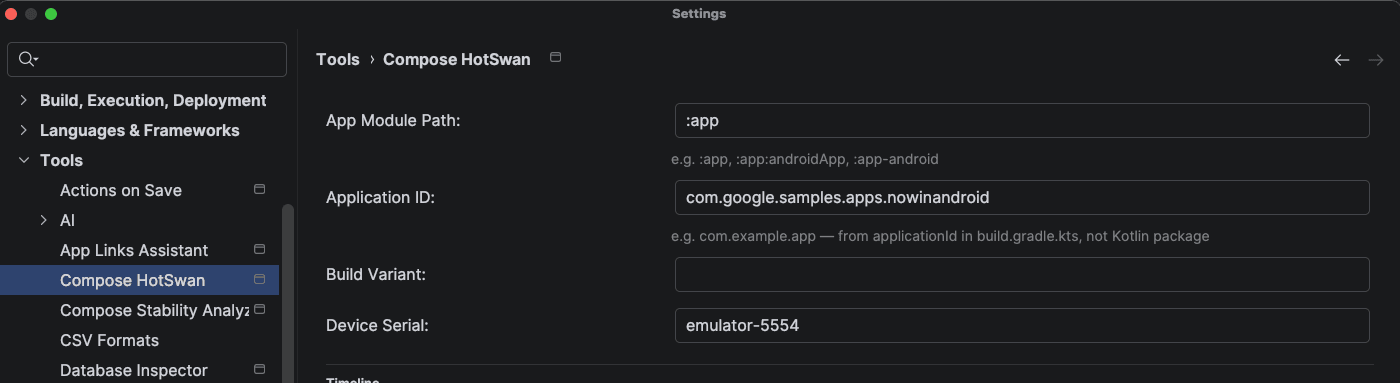
Solution: Open Settings → Tools → Compose HotSwan and update the module path. For standard single-module projects, the default :app works. For KMP projects, use the full path to the Android target:
- Single module:
:app - KMP project:
:app:androidAppor:composeApp - Multi-module:
:feature:home(the module containing the code you are editing)
You can verify your module path by checking settings.gradle.kts for the include() declarations.
App Launch Failed
HotSwan fails to launch the app because the package name does not match.
Cause: The App Package Name in HotSwan settings differs from the applicationId declared in your module's build.gradle.kts. This can happen when you have different applicationId values for debug and release variants, or when namespace and applicationId differ.
Solution: Open Settings → Tools → Compose HotSwan and set the Application ID to match the exact applicationId of the build variant you are running. Check your Gradle file:
android {
    namespace = "com.example.app"       // ← not this
    defaultConfig {
        applicationId = "com.example.app" // ← use this value
    }
    buildTypes {
        debug {
            applicationIdSuffix = ".debug" // ← include this if present
        }
    }
}
If your debug build type uses applicationIdSuffix (e.g. .debug), the full package name becomes com.example.app.debug. Make sure the HotSwan setting includes this suffix.
If you are unsure of the exact package name, run the following command to see installed packages on the device:
adb shell pm list packages | grep yourappTool Window Not Visible
The HotSwan tool window does not appear in the IDE.
Cause: The plugin is either not installed, not enabled, or the IDE needs a restart to register the tool window.
Solution:
- Go to Settings → Plugins and confirm "Compose HotSwan" is listed and enabled.
- Restart the IDE if you just installed or updated the plugin.
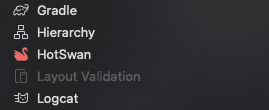
- After restart, go to View → Tool Windows → HotSwan to open the panel.
If the tool window still does not appear, check the IDE's Help → Show Log in Explorer/Finder for plugin loading errors.
Version Mismatch
Reloads fail or behave oddly, and a message mentions a wire protocol mismatch or a session that could not be verified.
Cause: The IDE plugin and the Gradle plugin are released in lockstep and share a version number. When they diverge, the two halves disagree about the wire they speak. HotSwan names this rather than failing quietly: you will see either wire protocol mismatch, which says the newer half is from a different release, or a note that the session a reload presented could not be verified, which says the same thing from the Gradle side.
Solution: Update both to the same version. Update the IDE plugin from the Marketplace, and the Gradle plugin in your version catalog. On a Kotlin Multiplatform project update the iOS runtime together with the Gradle plugin, since they ship as a pair.
Why did HotSwan restart my app?
Your edit is applied, but the app restarts instead of updating in place, and you lose the screen you were on.
Cause: HotSwan 2.x runs your new code in an interpreter inside the app, so adding and removing composables, changing how a screen branches, and wrapping or unwrapping layout all apply in place. The remaining fallback is narrow: when an already instrumented class changes its superclass or an interface it implements, swapping it in place would leave the object layout inconsistent with instances that already exist. HotSwan refuses to do that and restarts the process instead.
Solution: Nothing to fix. The restart is the safe outcome, and it is a process restart rather than a rebuild and reinstall, so it is much faster than the v1 behaviour this replaced. If you want to avoid it, keep hierarchy changes out of the edit you are iterating on.
If you are coming from HotSwan 1.x, note that the old rule no longer applies. The JVMTI and DEX path that forced a rebuild for structural edits was removed in 2.0, and structural edits are the case 2.x was built for.
Device Not Detected
HotSwan does not detect a connected device or emulator.
Cause: HotSwan uses ADB to communicate with devices. If ADB is not available, the device is not authorized, or USB/wireless debugging is not enabled, the connection will fail.
Solution:
- USB debugging: Enable Developer Options → USB Debugging on the device. Accept the authorization dialog when prompted.
- ADB path: Ensure
adbis accessible from your terminal. Android Studio typically bundles ADB at$ANDROID_HOME/platform-tools/adb. - Wireless debugging: For wireless connections, the device and computer must be on the same network. Use
adb pairfollowed byadb connectto establish the connection. - Verify connection: Run
adb devicesin your terminal. The device should appear asdevice(notunauthorizedoroffline).
Slow First Reload
The first hot reload after opening a project takes significantly longer than subsequent reloads.
Cause: The first reload requires a cold compilation pass. HotSwan's compiler plugin needs to build the initial baseline of class structures and set up incremental compilation caches. This is a one-time cost per session.
Expected timings:
- First reload: the cold push establishes the baseline and is the expensive one. Measured on a physical device against the pokedex sample, about 23 seconds.
- After that: warm edits on the same sample land in about 2.6 to 3.1 seconds end to end, and a literal-only edit skips compilation entirely and is far faster again.
- iOS simulator: a structural edit costs more than on Android, because the change ships as a dynamic image the running app loads.
Incremental compilation kicks in after the first reload. Only the changed functions are recompiled, making subsequent reloads much faster. If reloads remain slow after the first one, check that your Gradle daemon has sufficient memory allocated.
Changes Not Detected
You save a file but HotSwan does not trigger a reload.
Cause: HotSwan relies on the IDE's virtual file system (VFS) to detect file changes. If you edit files with an external tool such as a terminal editor, a CLI script, or an AI coding agent, the IDE may not be aware of the change until it refreshes its VFS.
Solution: The VFS refreshes on its own within a few seconds. To force it, focus the IDE window, or use File Reload All from Disk. Saving again from inside the IDE also works.
Source sets are not the problem. HotSwan watches every production source set, including commonMain, androidMain, iosMain, jvmMain, desktopMain and per target sets. Only test source sets are skipped. If you read an older version of this page that said otherwise, that restriction was removed because it silently disabled reload for whole source sets.
If the file is watched and nothing still happens, the module it lives in may not be hot reloadable at all. See Module skipped below.
Build Errors After Plugin Update
Build fails after updating the HotSwan Gradle plugin to a newer version.
Cause: Stale Gradle caches or compilation outputs from the previous plugin version can conflict with the updated plugin. The compiler plugin generates metadata that is version-specific, and old cached metadata may be incompatible.
Solution: Invalidate caches and perform a clean build:
- Run
./gradlew cleanto remove all build outputs. - In Android Studio, use File → Invalidate Caches → Invalidate and Restart.
- After the IDE restarts, run a full Gradle sync and build.
If the error persists after a clean build, check the error message for specific version requirements. Some HotSwan updates may require a minimum Kotlin or AGP version. Refer to the release notes for compatibility details.
A Module Is Skipped Entirely
Edits in one module never reload, while other modules work fine. The build log carries a line starting [HotSwan v2] Skipping.
Cause: The Kotlin Compose Compiler plugin is not applied to that module, so there are no composables for HotSwan to instrument and it no-ops. This is common in projects that apply Compose through a convention plugin, where one module was left out.
Solution: Apply org.jetbrains.kotlin.plugin.compose in that module, or apply it inside the convention plugin the module uses. HotSwan says which module it skipped and why, so the log line names the fix.
A related case is a file that belongs to no hot reloadable module at all. The tool window reports no hot-reload-enabled Gradle module for the changed file(s), and the remedy is a one line apply of the HotSwan Gradle plugin on the app module, which propagates to every Compose library.
Hot Reload Is Off for This Run
The app launches and behaves normally, but every push fails to connect and no edit reaches the screen. Logcat carries hotswan: HOT RELOAD IS OFF for this run.
Cause: The app does not hold android.permission.INTERNET, so Android refused the socket call itself before HotSwan could bind. There is no on-device reload server to talk to. Nothing else looks wrong, which is why this one is worth knowing by name.
Solution: Declare the permission for your debug build:
<!-- src/debug/AndroidManifest.xml -->
<uses-permission android:name="android.permission.INTERNET" />
You rarely need to do this. HotSwan's own runtime declares the permission and manifest merge contributes it to your debug build, and most apps declare it anyway for network calls. The case that reaches this message is a build that strips or overrides it.
java.lang.System::load Warning
A warning about java.lang.System::load appears in the Gradle output during hot reload.
Cause: This is a JDK 17+ reflective access warning emitted by Gradle's internal native library loader. It is not related to HotSwan and does not affect hot reload functionality.
Solution: This warning can be safely ignored. It does not indicate any problem with your project or the HotSwan plugin. Gradle is expected to resolve this in a future version.
Auto Reload Not Working (Edits Not Reaching Disk)
HotSwan detects file changes but does not automatically trigger a hot reload on save. You have to manually click the refresh button.
Cause: HotSwan watches the file on disk, not the editor buffer. It listens for IDE virtual-file-system events and also re-scans every few seconds so that changes written by an external tool — an AI agent, a script, git — are picked up too. So a reload fires when your edit actually reaches disk, and an unsaved buffer produces no event at all.
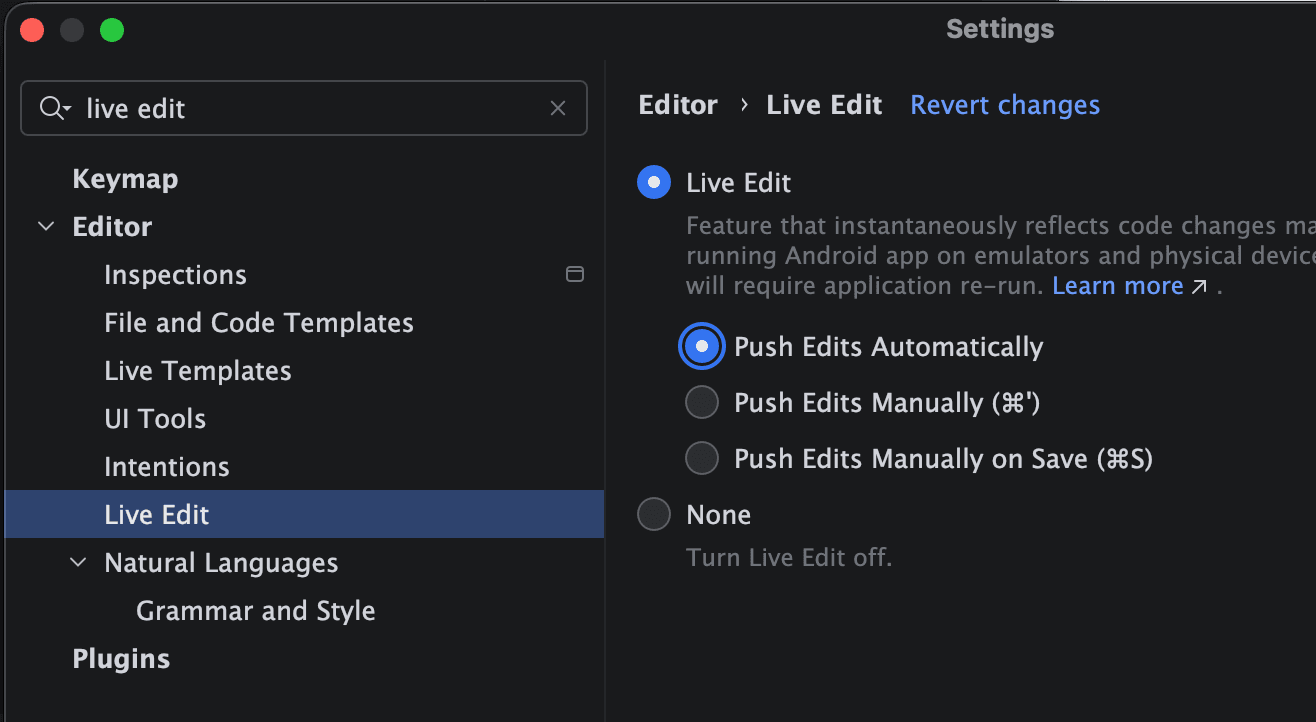
Solution: make sure your edits are being written out. Pressing Cmd+S / Ctrl+S always works. To get a reload as you type, turn on any setting that saves continuously — for example Settings → Editor → Live Edit in Android Studio, whose modes control how eagerly the IDE flushes your changes:
- Push Edits Automatically (recommended): HotSwan triggers on every file change.
- Push Edits Manually on Save: HotSwan triggers when you press
Cmd+S/Ctrl+S.
HotSwan does not read the Live Edit setting and does not depend on it — it is simply a convenient way to make the IDE save for you. IntelliJ's own autosave options, or saving by hand, work just as well.
Internal Compiler Error After Adding HotSwan
The build fails with an Internal compiler error naming a Kotlin compiler symbol, and the message never mentions HotSwan.
Cause: Your build runs a Kotlin older than HotSwan's floor. The compiler plugin is built against a newer Kotlin compiler API, so an instrumented module fails on a symbol that does not exist yet. The error names Kotlin internals rather than HotSwan, which makes it easy to misread as a bug in your own code.
Solution: Raise Kotlin to 2.3.20 or newer. HotSwan detects this case before it happens and prints a line that names the version it found and the version it needs, so check the build output for a hotswan: line before debugging further. See Requirements for the supported range.
The Edit Reached the Device and Was Declined
The push succeeds but the app reports that the new bodies were not applied, naming a reason.
The device refuses rather than applying something it cannot apply safely. Two reasons come with different remedies, so read which one you got.
Compile mode skew: the reload compiled incrementally and the installed build did not, so the two walk the composition differently. Rebuild the module non-incrementally by deleting <module>/build/kotlin and save again.
Slot shape change: the edit changes the shape of the composition in a way no reload can reconcile with what is already on screen. Rebuild and reinstall the app. Restarting the reload will not help, and HotSwan says so rather than letting you retry.
Build Variant Is Ambiguous
HotSwan reports that the hot reload variant is ambiguous and lists the candidates it found.
Cause: Your project has product flavors and HotSwan could not tell which one is running, usually because the app is not in the foreground on the target device or no device is selected. A project where no flavor is marked isDefault = true hits this most often.
Solution: Launch the app on the device and reload again, which lets HotSwan detect the running variant. To pin it, set Settings Tools Compose HotSwan Build variant to one of the candidates HotSwan listed.
Desktop Window Does Not Appear as a Target
Your Compose Desktop app is running, but it never shows up beside your devices.
Cause: The IDE finds a desktop target by probing the reload port, so the window appears once the runtime has bound it. Two things stop that. The port may already be held by another process, usually a previous run of the same app that is still alive or a second HotSwan desktop app, in which case HotSwan prints that hot reload is disabled for the window. Or the packaged baseline may have been stripped from the classpath by a packaging or resource merge filter, which HotSwan reports rather than publishing an empty dispatcher.
Solution: Close the other process, then relaunch. The runtime self bootstraps on the first instrumented dispatch, so no extra call is required, but calling installInterpreterBaselineDesktop() early in your main() binds the port at launch instead of at first composition, which makes the target appear immediately.
Some Declarations Are Not Hot Reloadable
The tool window shows an amber line saying that declarations you just edited are not hot reloadable and this edit needs a rebuild.
Cause: HotSwan decided at compile time that it cannot carry those specific declarations, so it refused them by name instead of applying something wrong. Any hot reloadable code in the same file is unaffected.
Solution: Rebuild to pick up those declarations. The notice names up to three of them, which is usually enough to see the shape HotSwan could not take. If a whole module reports this constantly rather than occasionally, treat it as a setup problem and check Module skipped first.
Still stuck?
If none of the solutions above resolve your issue, open a report on the Issue Tracker. Include the HotSwan plugin version, your IDE and Kotlin versions, and the logs. On Android that is `adb logcat -s HotSwanV2`. On Desktop it is the app's own stdout, tagged HotSwanV2Desktop. On the iOS simulator it is the simulator log stream filtered on HOTSWAN. One more thing helps more than it looks: the IDE runs Gradle quietly, so compiler-side refusals never reach the tool window. Running the same reload task from a terminal surfaces them.