Documentation
Screenshot Snapshot
Every hot reload automatically captures a device screenshot and records the associated code diff. Browse your changes as a visual snapshot gallery, travel back to any snapshot, and export the entire history as a visual report to share with your design team.
Overview
The Screenshot Snapshot captures a device screenshot after every successful hot reload and pairs it with the git diff that triggered the reload. The result is a chronological strip of thumbnails in the IDE's tool window, giving you an instant visual history of your UI changes.
Snapshots are captured over ADB, so they need an Android device or emulator. On a session running only Compose Desktop or the iOS simulator, no snapshot is recorded at all.
A reload also captures the screen before the change, so a snapshot can show you what actually moved. Each one records which signal timed its after-image: when the device reported that its composition had gone quiet, a verdict of "nothing changed" is a real finding. When the shot was timed only by the reload call returning, it is not, and the snapshot says which it was rather than letting you read one as the other.
Getting Started
To start using the Snapshot feature, navigate to View → Tool Windows → HotSwan and select the Snapshot tab. Click the Start button in the Snapshot toolbar to begin capturing. From this point on, every successful hot reload will automatically capture a screenshot from your Android device or emulator.
There is no default location — snapshot capture stays off until you choose a directory in Settings → Tools → Compose HotSwan. Pick one there before pressing play, or nothing will be written.
Gallery View
The Snapshot panel is split into two areas. The top section is a horizontally scrollable strip of screenshot thumbnails, ordered chronologically. Click any thumbnail to select it.
The bottom section is the detail panel. It shows the selected screenshot at full size alongside its metadata (timestamp, the number of classes applied, the files that changed) and the diff that produced the change. This lets you see exactly what code change led to each visual state.
The detail panel also has an image diff mode, which puts the before and after screenshots side by side with a computed delta between them, so a change that is easy to miss by eye shows up as pixels. The delta can be saved as its own PNG.
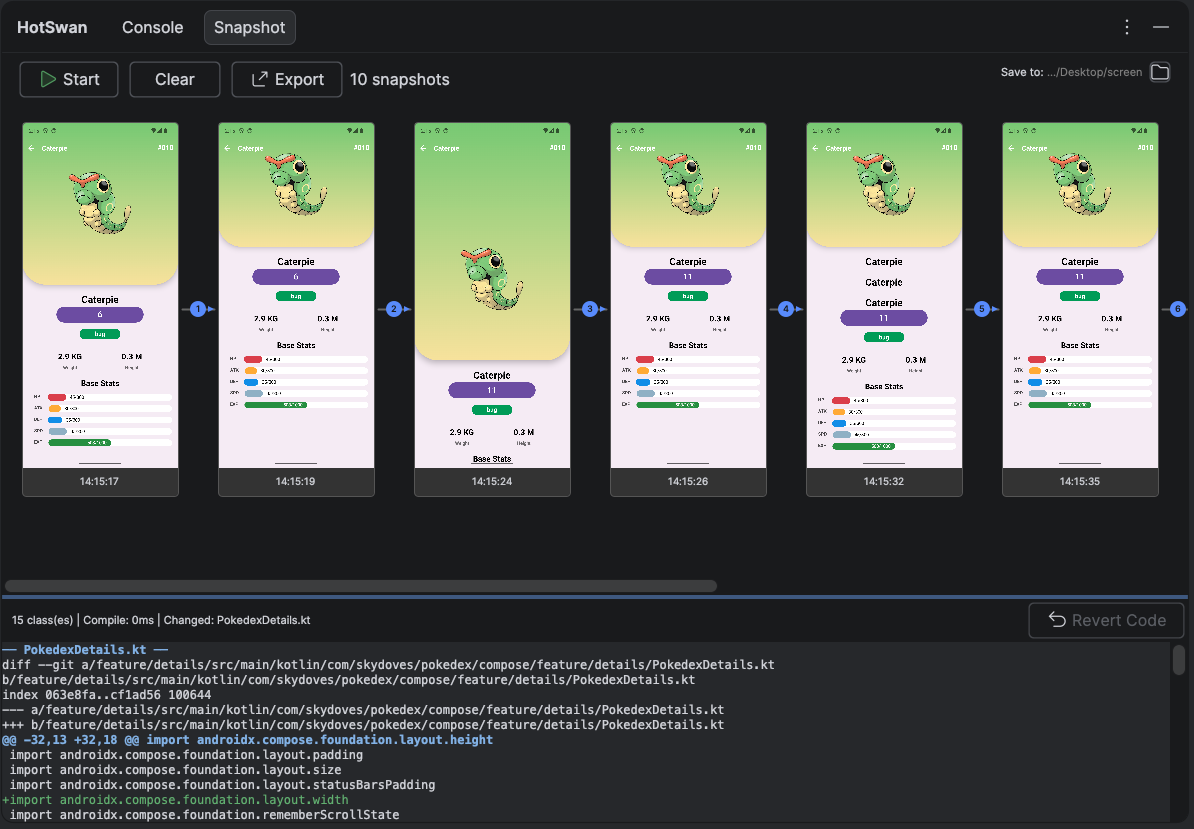
Double-click any thumbnail or the detail image to open a full-screen viewer for pixel-level inspection.
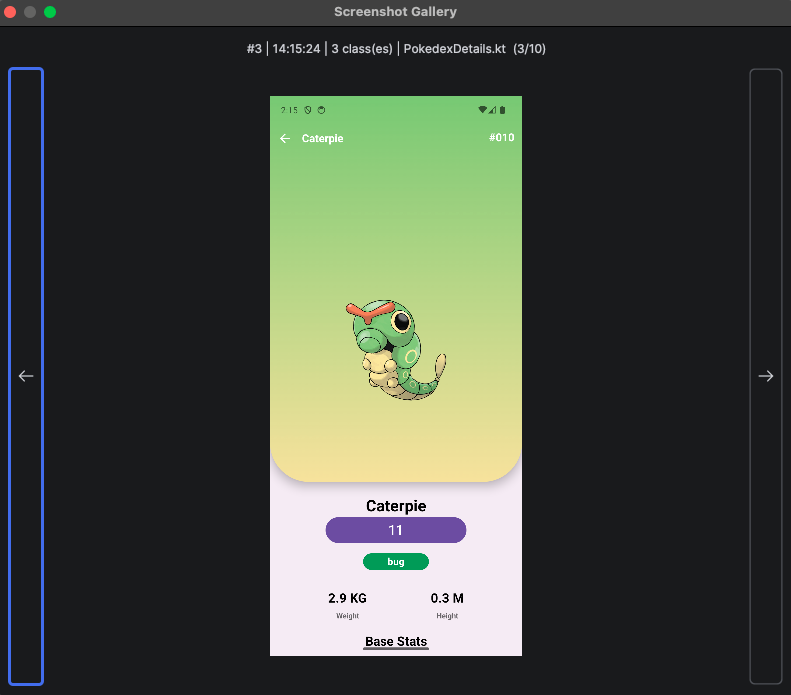
Code Time Traveling
Each snapshot records the exact code state at that point in time. You can revert your source code to any previous snapshot and instantly see the UI update via hot reload.
Select a snapshot and click the Revert Code button. HotSwan restores the file contents recorded in that snapshot, so your working files go back to exactly that state. After reverting, HotSwan automatically triggers a hot reload so the device UI updates to match the reverted code. No manual save is required.
Code reverts are registered in the IDE's undo stack. Press Ctrl+Z (or Cmd+Z) to undo the revert and return to your latest code.
Design Bridge
Bridge the gap between development and design. Export your snapshot history as a self-contained visual report that designers can review without any developer tools.
Click Export in the Snapshot toolbar. The generated HTML file embeds all screenshots and renders diffs with syntax highlighting. Share it directly with your design team for pixel-level review.
The report is not just a gallery. It has a Compare & Overlay view: pick any screenshot and compare it against the previous one, or drop in a design file and compare against that. A PNG, a JPG or a Figma export all work. Slider mode wipes between the two, overlay mode puts one on top of the other with an opacity control, which is how a spacing or color argument gets settled in one look instead of a thread.
The dropped design file never leaves the reviewer's machine. The report reads it in the browser, so nothing is uploaded anywhere.
Common use cases include sharing with designers for pixel-perfect UI feedback, attaching to code reviews to show the visual impact of changes, comparing implementation against design mockups, and archiving as development documentation.
Agent Access
Snapshots are reachable from an AI coding agent through the MCP server, which is what lets an agent check its own work instead of assuming an edit landed.
A reload returns the id of the snapshot it recorded. Passing that id to hotswan_screen_delta answers whether the screen actually changed, and by how much. hotswan_list_snapshots lists every recorded snapshot and says which ids can be compared at all, so an agent can reach a delta for an earlier reload rather than only the one it just ran.
One caution, for people and agents alike: selecting a variant is destructive. It keeps the snapshot you picked and deletes the others, including their image files. Export first if you want to keep the history.
Configuration
All Snapshot settings are available in Settings → Tools → Compose HotSwan.
| Setting | Default | Description |
|---|---|---|
| Screenshot format | PNG | PNG for lossless quality, JPEG for smaller file sizes |
| JPEG quality | 85 | Used only when the format above is JPEG. |
| Max snapshots | 50 | Maximum number of snapshots to keep. Oldest snapshots are removed first. |
| Capture delay | 500 ms | Delay after a successful reload before capturing the screenshot. Increase if animations need time to settle. |
| Save directory | (unset) | Directory where screenshots and metadata are stored. Snapshot capture is inactive until this is set. |