Compose HotSwan Blog
Compose Hot Reload: See UI Changes Instantly Without Rebuilding

April 10, 2026 · 8 min read

Photo by aronvisuals @ Unsplash
If you have spent any meaningful time building Android apps with Jetpack Compose, you know the loop. You change a color value, save the file, and then wait. Gradle compiles. The app reinstalls. It restarts from the launcher screen. You navigate back through three, five, seven screens to reach the one you were working on. By the time you get there, you have already forgotten what the previous value looked like. The context you spent minutes setting up has been destroyed by a single build cycle.
The deeper issue is not just the wait. Every full rebuild resets your app state. Scroll positions, navigation stacks, form inputs, dialog states, in memory ViewModel data. All of it disappears. You are not comparing your change against the previous version. You are rebuilding the entire context from scratch, every single time. On a small project this costs 30 seconds. On a large multi module codebase, it can cost 5, 10, or even 30 minutes per iteration.
In this article, you will learn how Compose hot reload works on Android, what makes it different from existing solutions like Live Edit and Apply Changes, and how it changes day to day Compose UI development.
What is Compose Hot Reload?
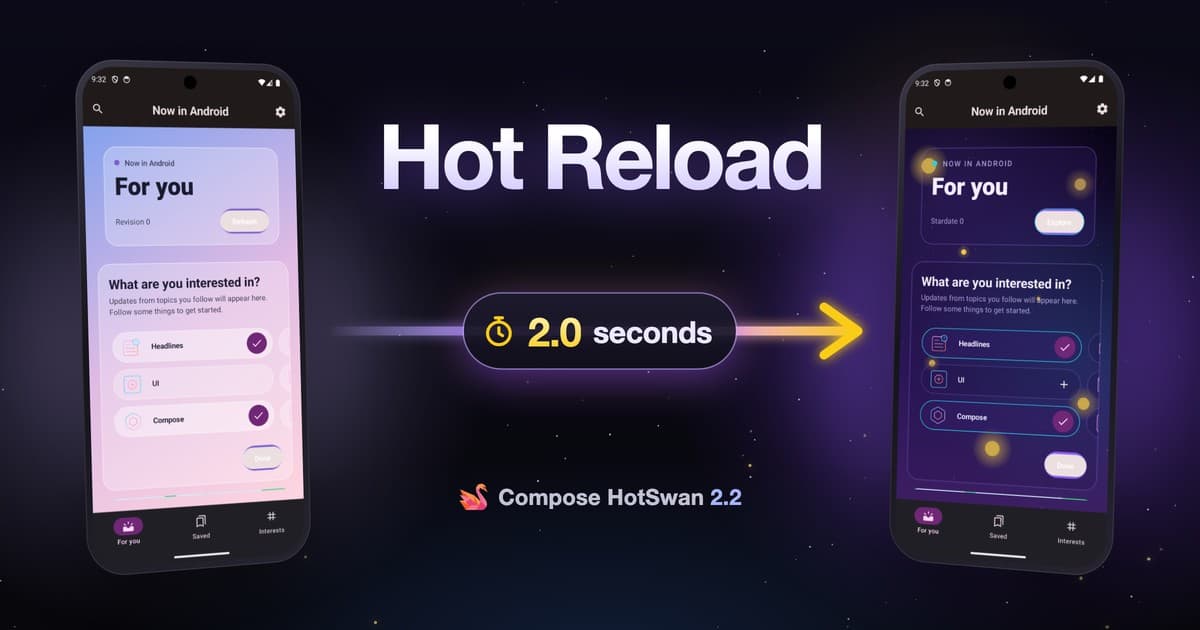
Save a .kt file, see the change on a real Android device in under a second. No app restart. No state loss. No navigation reset. The screen you are looking at updates in place with all your data, scroll position, and navigation stack intact.
This works on physical devices and emulators. You do not need a special build variant, a test harness, or a preview annotation. You run your app normally, edit your code, and see the result on the same screen you were already looking at.
If you have used Live Edit in Android Studio, you know it only works in Compose Preview, not on a running device. Apply Changes handles a narrow set of method body edits but frequently falls back to a full restart, and it does not trigger Compose recomposition. HotSwan fills the gap between these tools and what Android developers actually need: instant visual feedback on a real device running real data.
How It Actually Works
The full pipeline from file save to UI update involves five steps. Each one is designed to minimize the amount of work, so only the code that actually changed gets recompiled and applied.
When you save a Kotlin file, HotSwan detects the change and identifies which Gradle module the file belongs to. It runs an incremental build on just that module, not the entire project. The HotSwan compiler plugin isolates each function body into its own compilation unit during this step, so changing one function does not affect its siblings.
After compilation, HotSwan extracts only the classes that actually changed by comparing the fresh DEX output against a baseline captured from the installed APK. These changed classes are sent to the device and swapped directly in the running app's memory using a native agent. No new objects are created. Existing instances automatically use the new method bodies on the next call.
Finally, HotSwan triggers a targeted Compose recomposition. The Compose runtime already tracks which scopes are affected by which classes, so it recomposes only the scopes that changed. Everything else stays untouched. The whole cycle, from save to visible UI update, takes about one to three seconds on the first reload and often under a second on subsequent reloads.
What You Can Hot Reload
HotSwan is not limited to simple text and color changes inside composable functions. Because it operates at the runtime class level, it can swap any Kotlin function body. Here is the full range of what you can change without restarting your app:
- Composable function bodies: text, colors, modifiers, layout structure, conditional logic, child composable calls.
- Non-composable functions: ViewModel methods, repository logic, utility functions, data mappers.
- Adding new composables: define a new function and call it from an existing one.
- Composable reordering: move composable calls around within a function body while preserving state.
- Resource values: strings, colors, dimensions in XML files.
- Data class property additions: add new constructor properties and computed fields.
- Extension, suspend, and vararg functions: special calling conventions are handled transparently.
When a change falls outside what the runtime can swap in place (such as removing a function definition or changing a method signature), HotSwan detects it and automatically falls back to a full incremental build. You never get a broken state. The fallback is transparent.
For the complete list of supported changes with code examples, see the Supported Changes documentation.
Where It Really Shines
Animation tuning
Getting an animation right is trial and error. You adjust a spring constant, an easing curve, a duration. You need to see the result, compare it to the previous version, and decide whether to keep going or try something else.
With a full build cycle, each attempt requires rebuilding, restarting, navigating back to the screen, and re-triggering the animation conditions. If the animation plays on screen entry, you have to leave and re-enter. If it depends on specific state, you have to recreate that state. The feedback loop is so slow that most developers settle for "close enough" rather than getting the animation exactly right.
With HotSwan, you change dampingRatio = 0.6f to 0.5f to 0.4f, each one about a second apart. The trigger context stays alive. You see each variation on the same screen with the same data. You can make dozens of adjustments in the time a single full build would take.
Hard to reach screens
Some screens are painful to reach. A payment receipt that only appears after a successful checkout. An error state that requires a specific API failure. A detail screen buried behind five taps of navigation with specific data loaded.
Every full build resets the app to its start screen. If you are iterating on one of these screens, you spend more time navigating than you spend looking at your changes. On a large project, a single UI tweak can cost you several minutes of navigation and data setup on top of the build time itself.
HotSwan preserves your navigation stack and your app state. If you are on a detail screen three levels deep with specific data loaded, you stay there after the reload. The screen updates in place. You never leave the context you are working in.
Multi-target testing
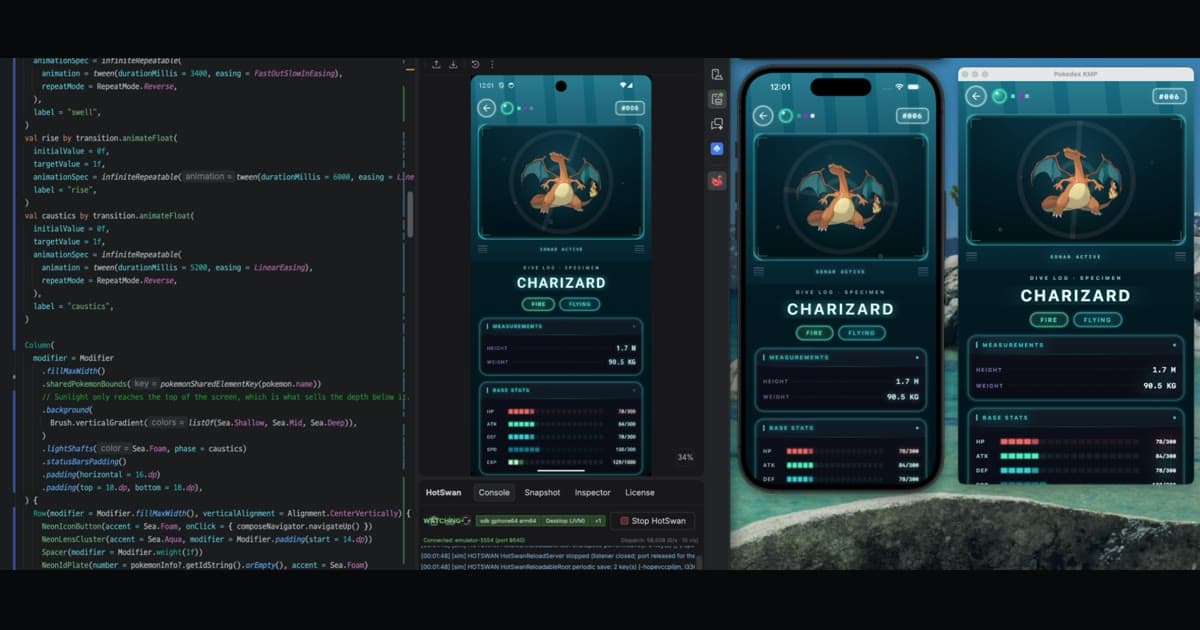
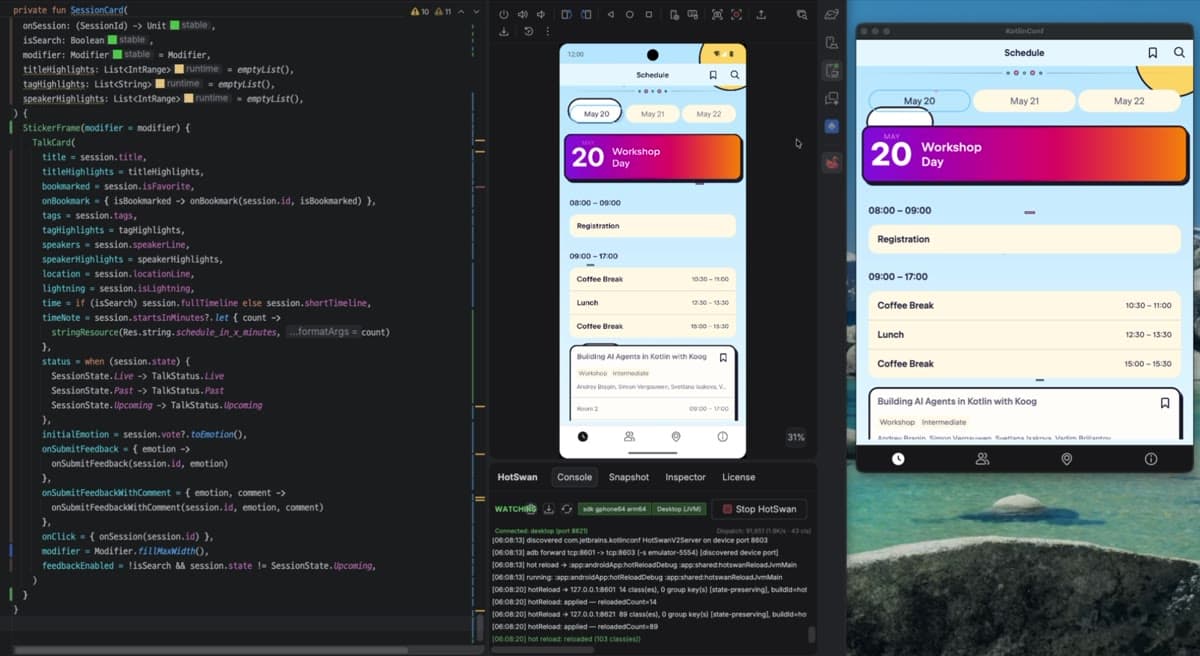
HotSwan applies each change to every target you have running: an Android device, a Compose Desktop window, and booted iOS simulators. Edit a shared composable once and watch all of them react to the same save. That is how you catch the bug Compose Multiplatform is actually prone to, the one where a shared screen is right on one platform and wrong on another. See the Multi-Target Hot Reloading docs for setup details.
Instant Literal Patching
Sometimes your edit is even simpler. You change a padding value from 16.dp to 24.dp, or a font size, or a color hex code. For changes that only touch constant literal values, HotSwan skips the entire compilation step and patches the value directly on the running device.
The result appears in under 50 milliseconds from the moment you save. No Gradle, no DEX generation, no class swap. The value is resolved against a representation of your composable tree that HotSwan maintains on the device, and the Compose runtime picks it up on the very next draw pass.
This makes it practical to fine tune colors, spacing, and typography by eye. You iterate as fast as you can type. String literals, integer and float values, color hex codes, and resource values in XML files all qualify for the fast path. For the full list of supported literal types, see the Literal Patching documentation.
Getting Started
Setting up HotSwan takes a few minutes. The workflow is straightforward:
- Install the IDE plugin. Open your JetBrains IDE, go to
Settings > Plugins > Marketplace, and search for Compose HotSwan. Install and restart.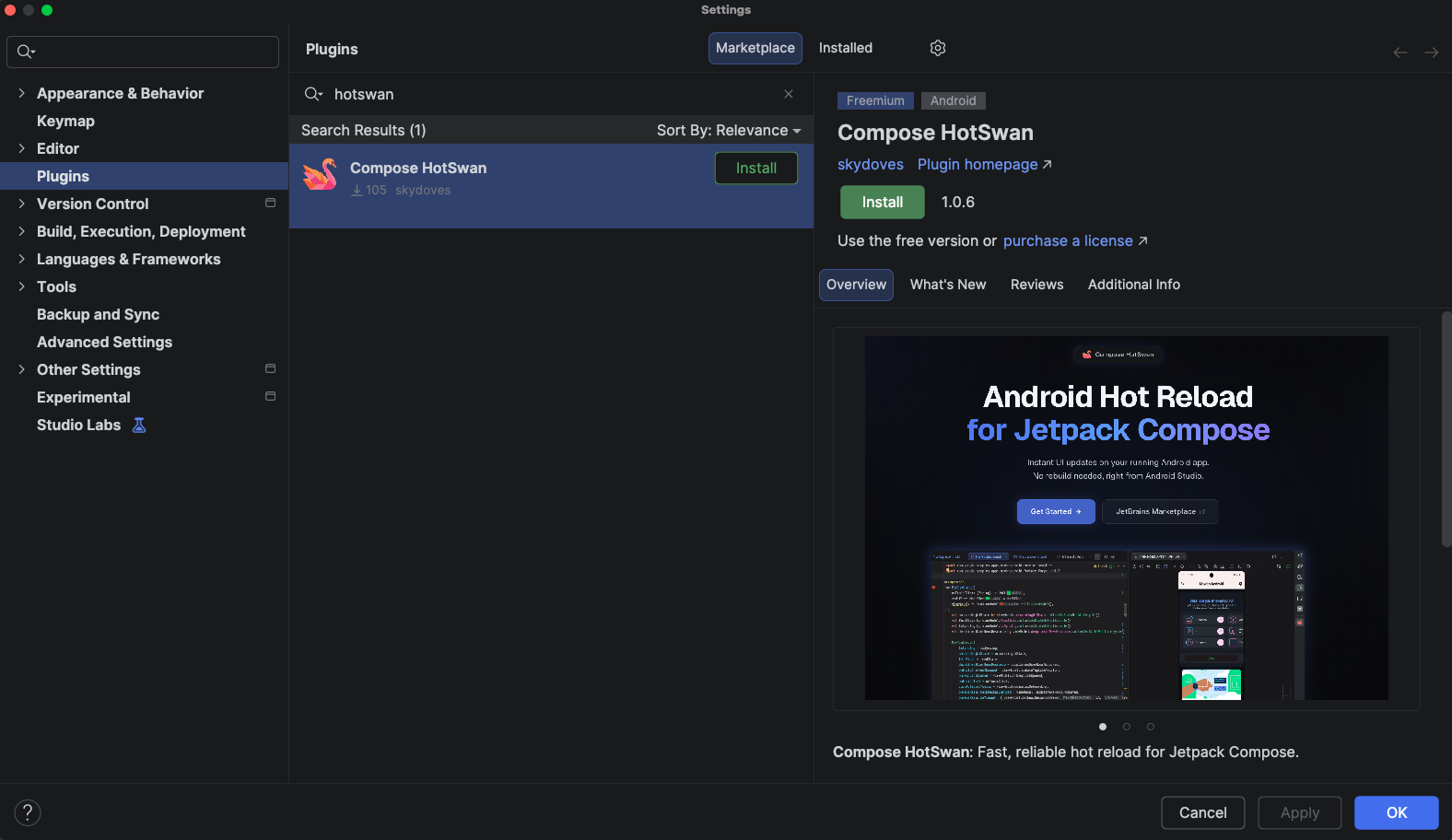
- Configure Gradle. Add the HotSwan compiler plugin to your project. Three files need to be updated:
Define the HotSwan compiler plugin in your version catalog so it can be referenced across modules.
libs.versions.toml1[plugins] 2hotswan-compiler = { id = "com.github.skydoves.compose.hotswan.compiler", version = "1.3.7" }Register the plugin in the root build script without applying it, so submodules can apply it individually.
Root build.gradle.kts1alias(libs.plugins.hotswan.compiler) apply falseApply the plugin in your app module. This enables the compiler transformations and automatically adds the HotSwan client library.
App module build.gradle.kts1alias(libs.plugins.hotswan.compiler)IDE and Gradle versions must match. The Gradle plugin version must match the IDE plugin version. When you update the IDE plugin, update the version inlibs.versions.tomlas well. The Gradle plugin automatically handles the client library dependency and required Kotlin compiler flags. - Build and run your app normally. Use the standard Run button. No special build variant required.
- Start HotSwan. Open the HotSwan tool window via
View > Tool Windows > HotSwan. Select your target device and click Start. - Edit and save. Change any Kotlin file and save. HotSwan detects the change, compiles only the modified code, and applies the update to your running app.
For the full step by step walkthrough with screenshots and Gradle configuration examples, see the install guide. For technical details on the pipeline, supported changes, and limitations, visit the documentation.
Closing Thoughts
Hot reload removes the build, wait, navigate loop from your workflow. Instead of rebuilding your app every time you change a composable, you see the result on a real device in about a second. Your state stays intact. Your navigation stack stays intact. You stay in the context you were already working in.
The practical effect goes beyond saving time. When the cost of trying something drops from minutes to seconds, you try more things. You iterate on animations until they feel right instead of settling for the first value that compiles. You experiment with layout variations on a real device with real data instead of guessing in Preview. You catch responsive layout issues by watching the change appear on multiple screen sizes simultaneously. The speed of feedback changes how you work, not just how fast you work.
Whether you are a solo developer tuning UI on a personal project or part of a team working on a large multi module codebase where builds take tens of minutes, hot reload makes Compose UI iteration feel the way it should: immediate, iterative, and grounded in what you see on screen.
As always, happy coding!