Compose HotSwan Blog
Compose Preview Screenshots in CI: A Real Device Catalog on Every Commit

May 13, 2026 · 11 min read
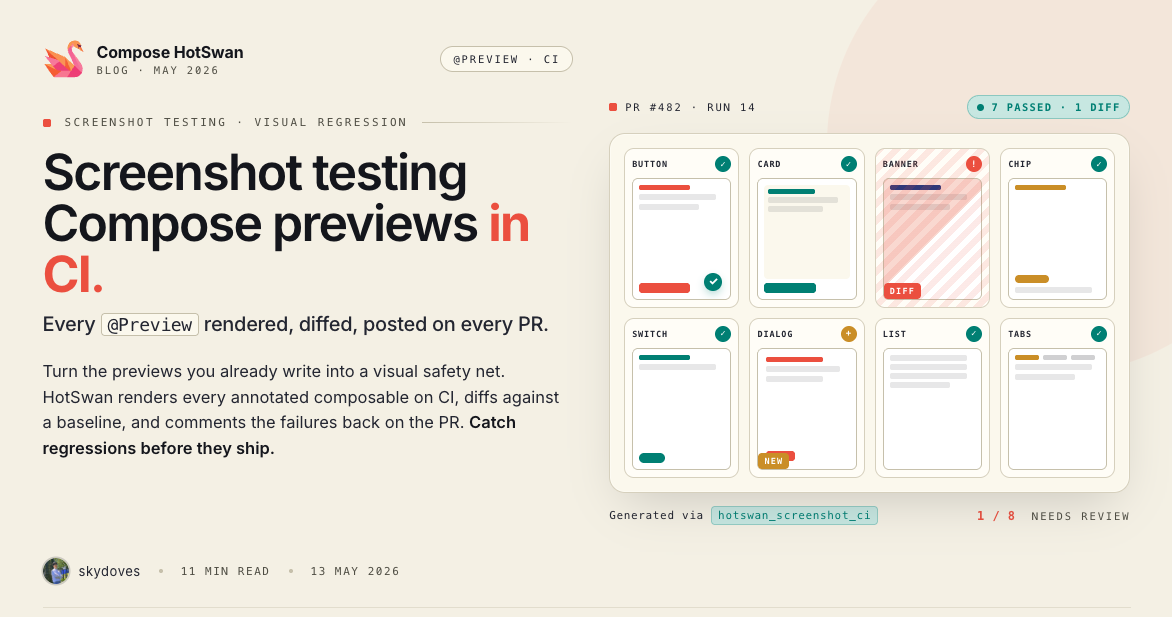
Most Compose codebases collect @Preview functions the way an attic collects boxes. You write a few while building a screen, they work for a while, then they drift out of date and nobody notices. The reason is not discipline. It is that a preview only ever shows up in one engineer's Android Studio, behind a recompile, on a render surface that does not match a phone. There is no shared artifact, so there is no shared pressure to keep previews alive.
In this article, you'll build a pipeline that closes that gap: capturing a single preview on a real device from the command line, capturing every preview in the project at once into a browsable HTML catalog, tuning the per preview render delay so slow screens still come out clean, running the whole thing in GitHub Actions on a managed Android device, publishing the result to GitHub Pages on every commit, and where Paparazzi and Roborazzi fit alongside it. The examples come from Pokedex Compose, which already runs this exact setup.
The gap between @Preview and your team
Compose Preview in Android Studio has three properties that keep it from becoming a team asset. It is private: the render lives in one editor on one machine. It is slow: changing a composable parameter, a color resource, or a single string in strings.xml forces a full Gradle recompile before the render updates, which on a large multi module project is 30 seconds to several minutes. And it is approximate: the renderer is layoutlib running inside the IDE, not the Android framework running on a device, so fonts, image loading boundaries, and system chrome can all diverge from what ships.
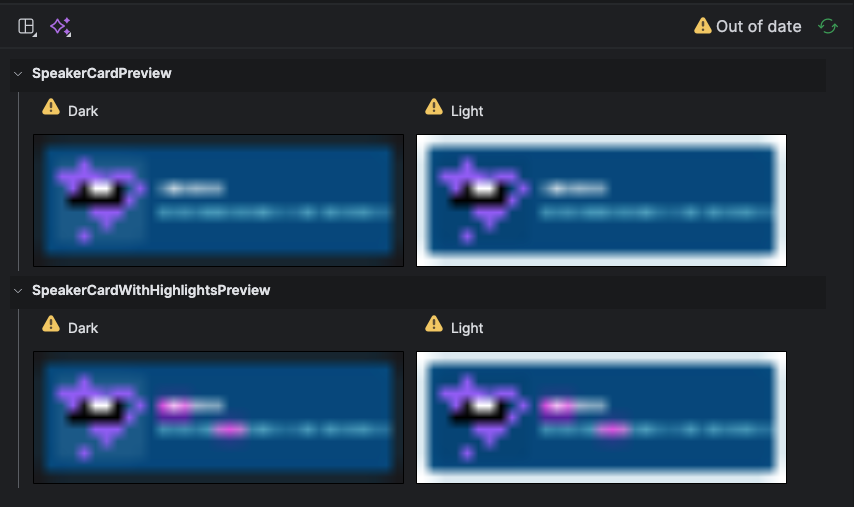
Android Studio Compose Preview, Out of date
What you actually want is the inverse. You want a render that anyone can look at, that does not need Android Studio, that comes from the same Android runtime your users run, and that refreshes automatically when the code changes. That is a screenshot of every @Preview in the project, taken on a device, collected into one page, and regenerated by CI. The rest of this article is how to get there.
Why it has to be a real device
A screenshot is only worth keeping if it matches reality. There are two ways to render a composable for a screenshot. One is to run it on the host JVM through a layout rendering engine, which is what Paparazzi and Roborazzi do. The other is to run it on an actual Android device or emulator, inside ART, the way the app runs in production. The first is fast and needs no device. The second is the only one that produces the pixels your users see.
The differences are not academic. Font rendering and text metrics come from the device, not a desktop font stack. Image loading with Coil or Glide actually executes, so a network image, a placeholder, and a crossfade all behave as they do at runtime. Hardware accelerated drawing, AGSL shaders, and blur effects run on the device GPU path rather than a software approximation. And a device screenshot includes the full screen, status bar and navigation bar included, which matters when you are checking how a screen sits under the system chrome.
Running on a device also means the preview runs in your real process. Hilt, Koin, network clients, databases, and anything else in your dependency graph are already wired up, so a preview that touches them does not need a single mock. The catch is that you need a device or emulator in the loop, including in CI. That is the trade off this whole approach makes: a bit more setup, in exchange for screenshots that are not a guess.
Rendering a preview on the device
Everything below stands on one piece: an on device preview rendering system that HotSwan adds to your debug build. Hand it the fully qualified name of a @Preview function and it renders that composable, in your running process, on the device, with no rebuild. You wire it in by adding the preview library as a debugImplementation dependency, which keeps it out of release builds entirely.
1plugins {
2    alias(libs.plugins.hotswan.compiler)
3}
4
5dependencies {
6    debugImplementation("com.github.skydoves.compose.hotswan:preview:1.3.7")
7}
With the app built and running once on a connected device, the interactive way to use this is the HotSwan gutter icon. Click it next to any @Preview function and that preview renders on the device in under half a second. No rebuild, real data, real fonts, real system behavior. That is the tight loop for a single preview while you work on it.
For screenshots you do not need the IDE at all. The same preview rendering system is what the captureAllPreviews Gradle task drives, one preview after another, capturing the screen each time. That is the command line path, and it is where this goes next.
Capturing every preview at once
With the HotSwan Gradle plugin applied, you get a captureAllPreviews task. With the app running on a connected device, one command walks the whole project.
1./gradlew captureAllPreviewsUnder the hood the task does five things, in order:
- Scans every
.ktfile undersrc/for@Previewfunctions and resolves each one's fully qualified name and Gradle module. - Turns on Android's System UI Demo Mode, which pins the clock, battery, and signal to fixed values so the status bar is identical across every shot. That keeps screenshot diffs about your UI, not about the time of day.
- For each preview, hands its fully qualified name to the on device preview rendering system, waits the render delay, and runs
screencapto save a PNG. - Restores the normal status bar and returns the device to your app's main Activity.
- Generates an
index.htmlcatalog next to the images.
Everything lands in .hotswan/preview-captures/ in the project root. Open index.html in any browser and you have a searchable grid: filter by name or module, toggle module grouping, switch dark and light, click any screenshot for a fullscreen view, and read the device model and timestamp at the top. There is no test code anywhere. The task reads your @Preview annotations directly.
If you build a design system, turn on sdkModeEnabled and the catalog goes further: it traces each preview to the composable it wraps, pulls the KDoc, and renders a parameter table with names, types, default values, and @param descriptions under every screenshot. That is a component reference that cannot drift, because it is generated from the code on every run. You can see a live result in the Pokedex Compose preview catalog.
Tuning the render delay per preview
A preview screenshot is taken a fixed number of milliseconds after the composable launches. Set that window too short and a screen that loads a network image, runs a query, or kicks off an animation gets captured half painted. Set it too long for everything and a project with dozens of previews takes minutes longer than it needs to. The fix is two layered settings: a small global default, and a per preview override where it is actually needed.
Configure the global value in the preview block. The plugin ships with 2500L, but most previews are static layout and are done in well under a second, so a catalog of components is happy at around 1000L. You then pay the extra cost only on the previews that earn it.
1hotSwanCompiler {
2    preview {
3        // most previews are static, so a short baseline keeps the run fast
4        renderDelayMs.set(1000L)
5
6        // pin the status bar (clock, battery, signal) for deterministic shots
7        demoMode.set(true)
8
9        // include KDoc + parameter tables in the catalog (design systems)
10        sdkModeEnabled.set(false)
11    }
12}
For the slow ones, annotate the preview with @PreviewScreenshot(renderDelay = ...). Anything that fetches over the network, hits a database, or settles an animation usually wants 3000 to 5000 milliseconds. A preview without the annotation falls back to the global value, so fast stays fast.
1// a static component: uses the global 1000ms baseline
2@Preview
3@Composable
4fun PokedexAppBarPreview() {
5    PokedexAppBar(title = "Pokedex")
6}
7
8// a screen that loads a remote image: give it room to settle
9@Preview
10@PreviewScreenshot(renderDelay = 4000)
11@Composable
12fun PokemonDetailPreview() {
13    PokemonDetail(pokemon = samplePokemon)
14}
15
16// a list backed by a repository / use case: same idea
17@Preview
18@PreviewScreenshot(renderDelay = 3500)
19@Composable
20fun PokedexHomePreview() {
21    PokedexHome(uiState = sampleHomeState)
22}
The rule of thumb: the global default is the cost you pay on every preview, so keep it near the floor. The annotation is the cost you opt into, so put it exactly where the pixels need more time. In Pokedex Compose the project sets a higher global value because the bulk of its previews are feature screens that load data, which is the other valid choice. Pick the baseline that matches the majority of your previews and override the minority.
Running it in GitHub Actions
Because captureAllPreviews is a normal Gradle task that drives ADB, it runs anywhere a managed Android device is available. On GitHub Actions the shortest path is reactivecircus/android-emulator-runner, which provisions and boots an emulator for the duration of a step. That emulator is a full Android image running real ART, not a host JVM substitute, so the screenshots it produces are the device kind. (If you prefer Google's built in option, Gradle Managed Devices works the same way; the runner action is just less config for a single device.)
Start with the trigger. Pokedex Compose regenerates the catalog on pushes to main that touch Kotlin or XML, plus a manual button, and gives the job the permissions it needs to write back and to deploy Pages.
1name: Generate & Deploy Preview Screenshots
2
3on:
4  workflow_dispatch:
5  push:
6    branches: [ main ]
7    paths:
8      - '**/*.kt'
9      - '**/*.xml'
10
11permissions:
12  contents: write
13  pages: write
14  id-token: write
15
16concurrency:
17  group: "preview-screenshots"
18  cancel-in-progress: true
The capture job checks out the code, sets up a JDK, enables KVM so the emulator runs accelerated, builds the debug APK, then hands an emulator the install, launch, settle, capture sequence. The app has to be running before captureAllPreviews runs, which is why the script installs the APK, starts the main Activity, and sleeps for ten seconds before invoking Gradle.
1jobs:
2  capture:
3    name: Capture Preview Screenshots
4    runs-on: ubuntu-latest
5    timeout-minutes: 30
6    steps:
7      - uses: actions/checkout@v4
8      - uses: actions/setup-java@v4
9        with:
10          distribution: zulu
11          java-version: 17
12
13      - name: Enable KVM
14        run: |
15          echo 'KERNEL=="kvm", GROUP="kvm", MODE="0666", OPTIONS+="static_node=kvm"' | sudo tee /etc/udev/rules.d/99-kvm4all.rules
16          sudo udevadm control --reload-rules
17          sudo udevadm trigger --name-match=kvm
18
19      - uses: gradle/gradle-build-action@v3
20      - run: chmod +x ./gradlew
21      - run: ./gradlew :app:assembleDebug
22      - run: rm -rf .hotswan/preview-captures
23
24      - name: Run emulator and capture screenshots
25        uses: reactivecircus/android-emulator-runner@v2
26        with:
27          api-level: 31
28          arch: x86_64
29          profile: pixel_6
30          emulator-options: -no-snapshot-save -no-window -gpu swiftshader_indirect -noaudio -no-boot-anim
31          disable-animations: true
32          script: |
33            adb install -r app/build/outputs/apk/debug/app-debug.apk
34            adb shell am start -n com.skydoves.pokedex.compose/.MainActivity
35            sleep 10
36            ./gradlew :app:captureAllPreviews
37
38      - uses: actions/upload-artifact@v4
39        if: always()
40        with:
41          name: preview-screenshots
42          path: .hotswan/preview-captures/
43          retention-days: 30
A few details earn their place. The emulator flags (-no-window, -no-boot-anim, swiftshader_indirect and friends) keep it headless and quick to boot. disable-animations: true stops transitions from leaking into a shot. Clearing .hotswan/preview-captures before the run means a deleted preview disappears from the catalog instead of lingering. And if: always() on the upload keeps whatever was captured even if one preview throws.
Publishing the catalog to GitHub Pages
An artifact you have to download and unzip is not a team asset. A URL is. The second job takes the captured directory and deploys it to GitHub Pages, so the catalog lives at a stable address that a designer, a PM, or QA can open without ever touching Android Studio.
1  deploy:
2    name: Deploy to GitHub Pages
3    needs: capture
4    runs-on: ubuntu-latest
5    environment:
6      name: github-pages
7      url: ${{ steps.deployment.outputs.page_url }}
8    steps:
9      - uses: actions/download-artifact@v4
10        with:
11          name: preview-screenshots
12          path: preview-captures
13      - uses: actions/configure-pages@v5
14      - uses: actions/upload-pages-artifact@v3
15        with:
16          path: preview-captures
17      - id: deployment
18        uses: actions/deploy-pages@v4
That is the entire pipeline. Push to main, an emulator boots, every @Preview gets rendered on it and screenshotted, the HTML catalog is built, and Pages serves the new version. The full file is in Pokedex Compose if you want to copy it: see the screenshot.yml workflow and the catalog it publishes. The capture half of this needs only the Gradle plugin and the preview library, with no IDE plugin and no license, so the CI workflow is free to run on any repository. The gutter icon flow from earlier is the part that uses the HotSwan IDE plugin.
Real device vs host JVM: where Paparazzi and Roborazzi fit
Paparazzi and Roborazzi solve a related but different problem. They render composables on the host JVM through a layout rendering engine, with no device or emulator, which makes them fast and trivial to run on any CI box. They are built for golden image regression testing: store a reference PNG, compare the next render pixel by pixel, fail the build on a diff. That is a job the approach in this article does not try to do.
The approach here renders on an actual device or emulator and produces a browsable catalog. The screenshots match what users see because they come off the same rendering path that draws the UI on screen, including system bars, real fonts, real image loading, and real GPU effects. It needs an emulator in CI, and it does not do pixel diffing out of the box. The two are complementary, and plenty of projects run both: Paparazzi or Roborazzi for fast regression gates, this for the living catalog and documentation.
HotSwan captureAllPreviews | Paparazzi / Roborazzi | |
|---|---|---|
| Rendering | Real device or emulator (ART) | Host JVM, layout rendering engine |
| System bars | Included (status bar, navigation bar) | Not included |
| Runtime behavior | Full (network, image loading, database, DI) | UI shell only |
| Test code required | None. Scans @Preview directly | Test class per composable |
| Output | PNGs + searchable HTML catalog (module grouping, KDoc, params) | PNGs |
| Pixel diff regression | Not built in | Yes, the core feature |
| CI setup | Emulator required (GitHub Actions supported) | No emulator needed |
| Best for | Visual cataloging, documentation, design review | Golden image regression testing |
If your priority is a fast regression gate with no emulator overhead, reach for Paparazzi or Roborazzi. If your priority is a catalog the whole team can read at a URL, rendered the way the app actually renders, this is the tool. Picking one does not rule out the other.
What this buys you
Once the pipeline is in place, a handful of things stop being manual work:
- Documentation that cannot drift. The catalog is generated from
@Previewannotations on every commit. If a component changes, its screenshot changes. There is no separate doc to update. - Design review without a build. Designers open a URL and see every state of every component, on a real device, instead of waiting for a build to be cut or a screen share.
- Onboarding by browsing. A new engineer opens the catalog, finds a component, and clicks through to the source file and module, without setting up accounts or seeded databases.
- A regression reference. Even without automated diffing, having yesterday's catalog and today's side by side makes an unintended visual change easy to spot in review.
- Pressure to keep previews alive. A broken or missing preview is now visible to the whole team in the catalog, which is the incentive that was missing when previews only existed in one editor.
Conclusion
In this article, you've gone from a single preview captured by two ADB commands, to captureAllPreviews rendering the whole project into one HTML catalog, to a render delay strategy that keeps a large catalog fast while letting slow screens settle, to a GitHub Actions workflow that does all of it on a managed Android device and publishes the result to GitHub Pages on every commit. The pieces are small. The combination is a component catalog that maintains itself.
Understanding the trade off helps you place it next to your other tools. Rendering on a device costs you an emulator in CI; in return the screenshots are the pixels your users see, system chrome and real image loading included, which a host JVM renderer can only approximate. Paparazzi and Roborazzi take the opposite trade and are the right call for a fast pixel diff gate. Running both is a reasonable answer.
Whether you maintain a design system, ship a multi module app, or just want your previews to stop rotting in the attic, the move is the same: make the render a shared artifact. Add the Gradle plugin and the preview library, run captureAllPreviews once locally, then wire it into CI. The Preview Screenshot docs and the Pokedex Compose project have everything you need to copy.
As always, happy coding!
— Jaewoong (skydoves)