Compose HotSwan Blog
Compose HotSwan v2 Beta: Hot Reload for Structural Changes, Whole Screens, and Live AI Edits

June 18, 2026 · 10 min read
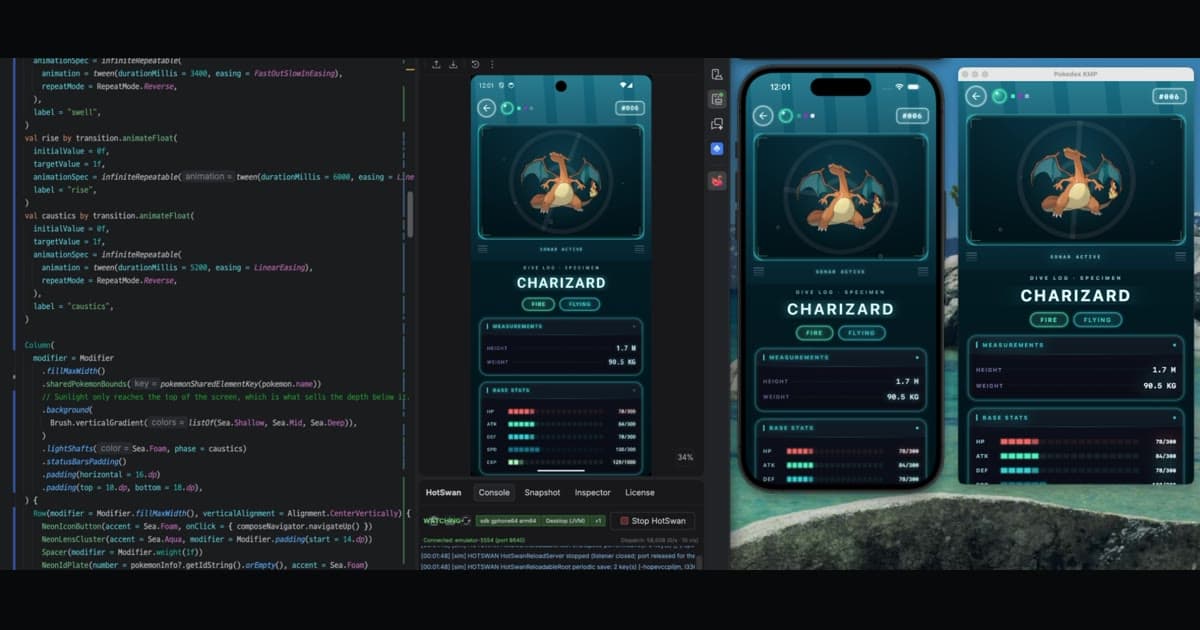
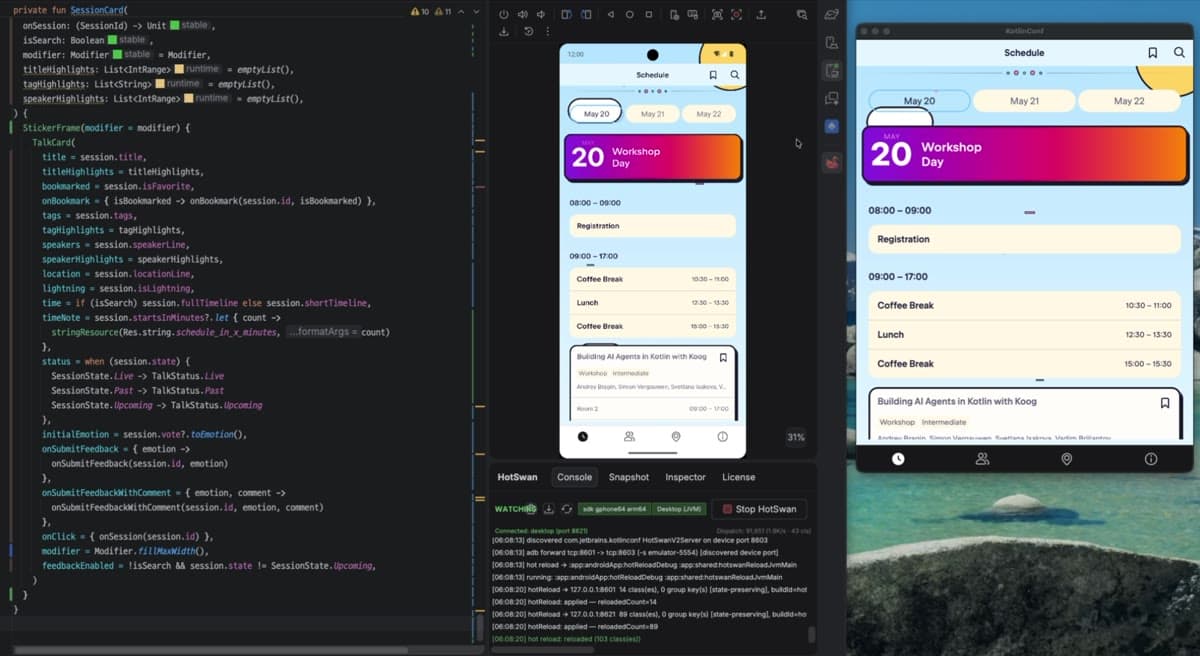
When you change a line of Compose code, you want to see it on the device now, not after a build, a reinstall, and a few taps back through the screens to where you were. Compose HotSwan exists to remove that wait. It pushes your edit to a running app and lets Compose redraw only what changed, so the screen updates while your app stays alive. v1 handled the everyday cases well: colors, padding, text, and other value edits landed almost instantly. v2 takes a much larger step, and the range of changes it can apply while your app keeps running now reaches all the way up to replacing an entire screen with brand new code.
In this article, you'll explore how far v2 goes in two short clips, how an AI agent can drive the loop for you, how to install the beta from start to finish, and what changed since v1 in both coverage and behavior.
A new bar for Compose hot reload
For most of its life, hot reload in the Compose world has meant one thing: change a value, see the value. Swap a color, nudge a padding, fix a string. Useful, but bounded. The moment you added a composable, reordered a layout, or changed control flow, you were back to a full build and a fresh launch.
v2 moves that boundary a long way out. You can restructure a layout, add and remove composables, change how a screen branches, and even replace a whole screen with code that looks nothing like what was there before. Your app does not restart. Your navigation stack stays where it was. The state you had on screen is still there when the new code renders.
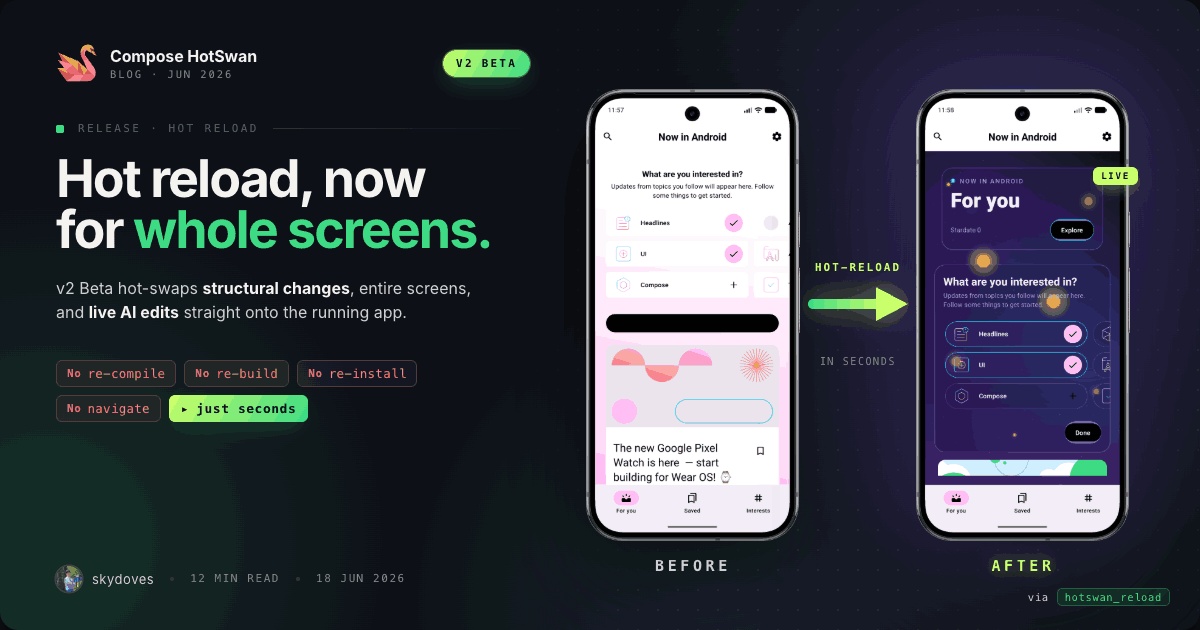
In the clip below, the For You screen from Now in Android is replaced with a completely different galaxy theme. This is not a value tweak. It is new structure, new composables, and new code, applied to the running app in place.
Stop for a second and look at what just happened. No app restart. No Gradle build. You did not even lose your scroll position. You hit save, and about three seconds later the whole screen is something completely different. Boom! Running live on the device.
None of this was possible in v1. Android's ART runtime puts hard limits on how much a loaded class can change, so v1 could swap a method body but not add a composable, reshape a layout, or replace a screen, and those deeper edits fell back to a full rebuild. v2 clears that ceiling with its own interpretation engine, the same approach other multiplatform runtimes take, which runs your changed code instead of asking ART to redefine itself. Structural changes are routed around the runtime rather than forced through it, so nothing in ART is patched and the edit still lands in the running app.
That is the kind of instant feedback that sent so many developers reaching for Flutter or React Native. With v2, you get it in native Jetpack Compose, in Kotlin, without giving up the build and the libraries you already have.
The build tax
But why does a tool like this need to exist at all? If you are new to hot reload, here is the problem it removes. Picture a detail screen seven screens deep in your app. You spent a few minutes navigating there, loading the right data, scrolling to the section you care about. All you want is to make the title a little bigger. You change fontSize = 16.sp to 18.sp, and Gradle starts building.
On a small project you wait around 30 seconds. On a large multi module codebase it can be 5, 10, or 30 minutes. The build finishes, the app reinstalls, and it restarts from the home screen. Your state is gone, and now you navigate those seven screens again, load the data again, and scroll to the same spot again, just to see one number change. The context you spent minutes building up is destroyed by a single build cycle. That is the build tax, and you pay it on every change.
Every change triggers a full build cycle. The app restarts, state is lost, and you navigate back from scratch.
No rebuild, no reinstall, no navigation. Your app stays alive with UI state preserved.
With hot reload the same change takes about a second. The app does not restart. You stay on the same screen with the same data, the same scroll position, and the same navigation state, so you can see 18.sp right next to where 16.sp was a moment ago and decide on the spot.
This matters most on the screens that are painful to reach: an error state behind a specific API failure, an empty list, a receipt that only appears after checkout. HotSwan keeps your navigation stack and your app state across a reload, so you stay in the exact context you set up. State preservation is not a side feature here. It is the point. A refresh that wipes your navigation and your remember values tells you almost nothing about how a change feels in a real session. For the longer version of this argument, see why hot reload matters in the docs.
And the timing matters. AI now makes writing and changing code faster than ever, but builds have not kept pace, so the build is fast becoming the slowest part of the loop. That is why hot reload looks less like a convenience and more like a foundation for the next generation of app development.
An AI agent in the loop
If a person can swap a screen this fast, so can an agent. The clip below hands the keyboard to an AI coding agent. It rewrites the same screen on its own, and the device updates live as the agent works. You are not driving the edit. You are watching the result appear on your running Android device in real time.
This is where fast feedback turns into a different way of working. The usual loop with an AI tool is a generation loop: you prompt, it writes code, you build for thirty seconds or more, you look, you decide it is not quite right, and you prompt again. Each pass costs time and tokens. HotSwan turns that into a decision loop. You ask for three or four variations, each one lands on your device in about a second, and you pick the one that works while looking at the real screen with real data.
v2 ships an MCP server that gives an AI assistant direct control over the reload pipeline through the Model Context Protocol. Instead of passively watching file changes, the assistant can trigger a reload, capture a screenshot to see the result, compare variants, and decide which design works best. The loop closes: the agent sees exactly what its change looks like on a real device and can keep iterating on its own.
You do not need a special setup to start. HotSwan treats an AI tool's saved edits the same as your own, so file based agents like Claude Code and Cursor work out of the box. For the MCP tools, copy the config from Settings into your agent, and drop the HotSwan agent skill into your project instructions so the model knows how to drive the loop. This is the part that makes the Flutter and React Native comparison feel fair. The fast feedback is here, and an agent can use it.
Installing the v2 beta
v2 ships as a beta on a separate release channel, so installing it takes one extra step compared to the stable release. Here is the full path from nothing to a hot reloading app.
Step 1: Add the Gradle plugin
Declare the HotSwan compiler plugin at version 2.0.0-beta04 in your version catalog, then apply it in your app module.
1[plugins]
2hotswan-compiler = { id = "com.github.skydoves.compose.hotswan.compiler", version = "2.0.0-beta04" }1alias(libs.plugins.hotswan.compiler) apply false1alias(libs.plugins.hotswan.compiler)The Gradle plugin version and the IDE plugin version must match. Keep both on 2.0.0-beta04.
Step 2: Install the IDE plugin from the beta channel
Beta builds are published on a separate channel, so they do not appear in the default Marketplace search. You download the beta build once and install it from disk.
- Open the beta versions page and download the
2.0.0-beta04build to your machine. - In your IDE, open
Settings > Plugins, click the gear icon, and choose Install Plugin from Disk. Select the file you just downloaded. - Restart the IDE when prompted.
Step 3: Run and start hot reloading
Run your app with the normal Run button. Open the HotSwan tool window from View > Tool Windows > HotSwan. When it reads WATCHING, you are connected.
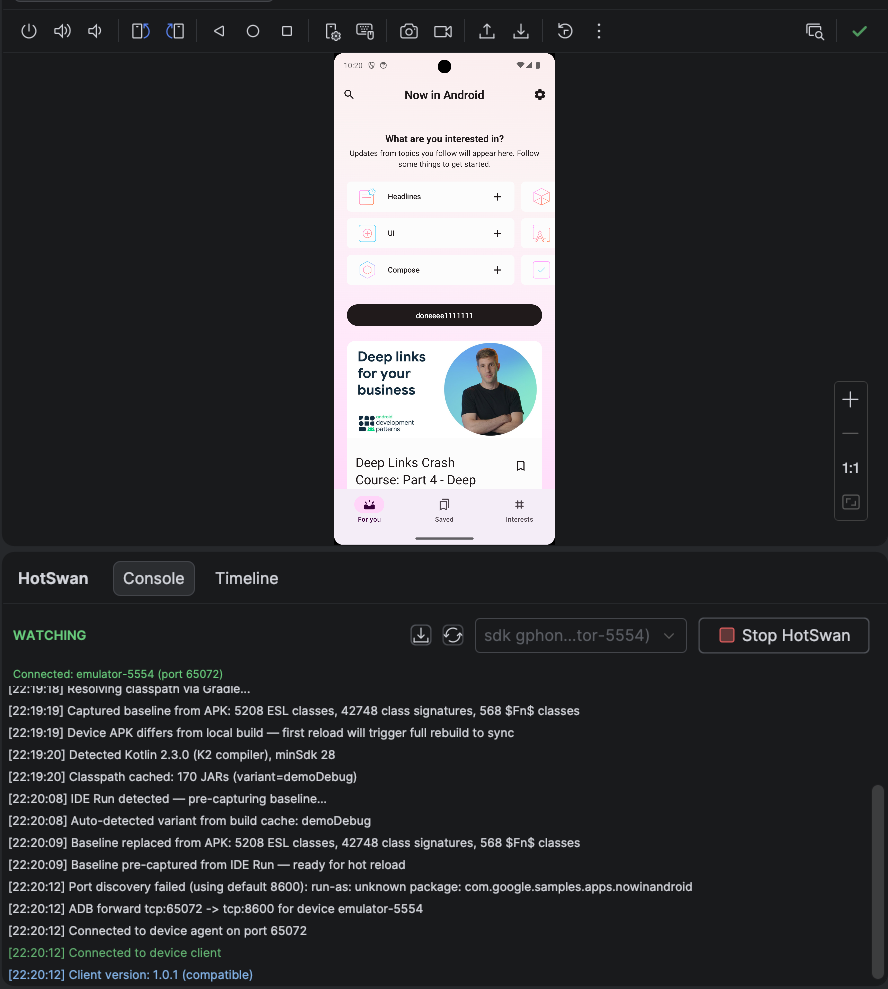
Now edit a composable, save, and watch the change land on the running device. No reinstall, no navigating back. If your app module is not :app (a Kotlin Multiplatform project, for example, often uses :app:androidApp), set the module path under Settings > Tools > Compose HotSwan.
What changed since v1
v1 already preserved state and applied value edits quickly. v2 keeps all of that and widens the set of changes it understands. The short version: v1 was good at tuning a screen that already existed, and v2 is built for changing what the screen is.
The table below is a coverage comparison, not a feature checklist. It groups the kinds of edits you make day to day and shows how much further v2 reaches into structural territory.
| The change you make | v1 | v2 |
|---|---|---|
| Value edits (color, padding, text, dimensions) | Yes | Yes |
| Modifier and styling changes | Yes | Yes |
| Adding or removing composables | Limited | Yes |
| Reordering a layout | Limited | Yes |
| Changing control flow and conditional UI | Limited | Yes |
| New functions and screen logic | Limited | Yes |
| Replacing an entire screen with new code | No | Yes |
| State and navigation kept across reloads | Yes | Yes |
Across all of these, the behavior you care about holds. Your app does not restart. The back stack and the screen you are on are preserved. The state on screen, like scroll position and form input, survives the reload. The jump from v1 to v2 is not a faster version of the same trick. It is a wider definition of what counts as a reloadable change.
How v2 reloads your code
You do not have to know any of this to use v2, but it helps to understand why the loop feels the way it does. For each edit, v2 picks the cheapest way to apply it.
The fastest is literal patching. When you change a literal value, a color hex, a dimension, a string, or a number, HotSwan sends just that value to the running app and skips compilation entirely, so it lands in well under 50 milliseconds. Anything beyond a literal, like new structure or new logic, takes the slightly longer path. HotSwan compiles only the code that changed and applies it to the running app, then Compose recomposes the scopes that depend on it. That path still finishes in about a second.
State survives because Compose already tracks your UI as a tree of scopes in its slot table, the structure that holds each composable's state, parameters, and children. When v2 applies a change, the runtime knows exactly which scopes are affected and recomposes only those. Your remember values, scroll position, and navigation stack are never touched. This holds even when you reorder composables, because state is tracked by a composable's identity rather than its position in the file.
When a change is too deep for a targeted recompose, v2 steps down gracefully rather than failing. It can reset the composition while keeping rememberSaveable values, ViewModels, and navigation, and only as a last resort restart the Activity. You do not pick between these. v2 chooses the lightest one that fits the change.
Three edits behave differently from the rest, and they are worth knowing apart rather than as one list. Changing a class hierarchy, a superclass or the set of interfaces a class implements, cannot be applied to objects that already exist in memory, so v2 restarts the app process and brings your edit up with it. On Android that restart is automatic, and it is a different order of cost from 1.x, where the same edit meant a full build and a reinstall. Adding or removing a function parameter is applied without being checked first: if the screen looks wrong or blank straight after one, save again, and the next reload reports the incompatibility and restarts the app.
Editing an inline function is the one to watch, because nothing tells you about it. An inline function is expanded into its call sites at compile time, so there is no unit left for a reload to replace. Most declarations v2 cannot carry are refused by name, with an amber line naming them. This one is not: it is skipped without a reason code you ever see, so there is no error and no warning either. If an edit to an inline function does not show up on the device, that is why, and a full rebuild and install picks it up.
On the toolchain side, v2 runs on Kotlin 2.3 and 2.4 from the same plugin, and the Gradle plugin pulls in the matching client library for your debug build on its own.
If you want to go deeper than this post does, the docs cover the reload pipeline, the full state preservation table, the supported changes, and the limitations in detail.
Try it and report issues
v2 is a beta, which means it is ready for real projects but still collecting rough edges. If you hit one, the fastest way to get it fixed is to report it with a small repro on the Compose HotSwan issue tracker. Tell us what you changed, what you expected, and what the app did instead. A short clip and a minimal sample go a long way toward a quick fix.
Hot reload in native Compose has spent years catching up to the feedback loops that other toolkits made look easy. With v2, that gap is mostly closed, and the part that is left is the part you can help shape. Install the beta, point it at a screen you have been meaning to redesign, and see how much you can change without ever leaving the app you are running.
As always, happy coding!
— Jaewoong (skydoves)